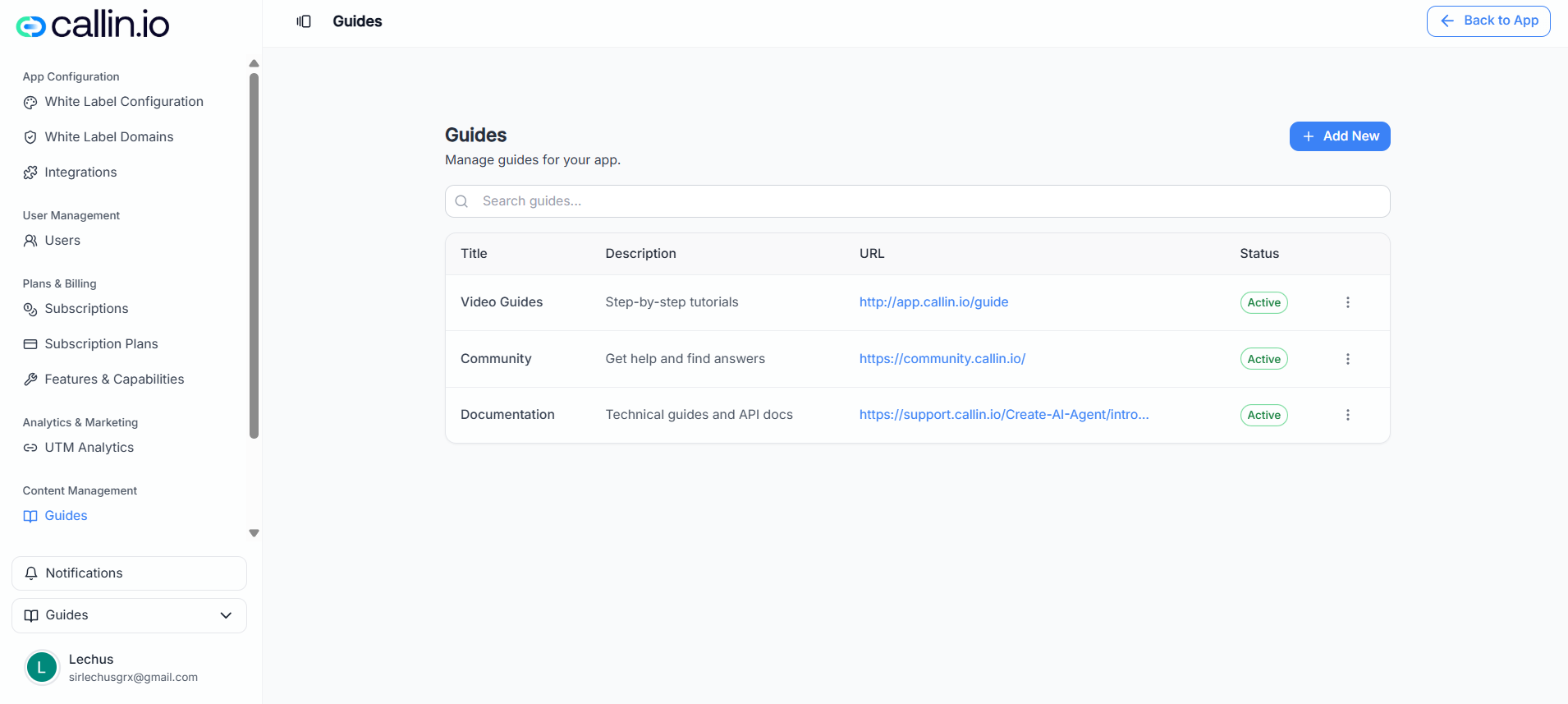
Screenshot: the Guides list where you can add new documentation links and manage existing ones.
## How it works Each item you add here is a **link** that can appear to your sub-accounts (depending on whether it’s active). The goal is simple: when someone needs help, they click the guide and are taken to the URL you provided. A guide typically includes: * A **title** (what users see in the navigation) * A **short description** (what the link is about) * A **URL** (where the user is sent) * An **active** toggle (to show or hide it) > **Tip:** Use clear titles like “Video Tutorials”, “Getting Started”, “FAQs”, or “Troubleshooting”. ## Add a new guide link 1. Click **Add New**. 2. Fill in the fields: * **Title**: the name users will recognize (for example, “Help Center”). * **Description**: a short explanation (for example, “Step-by-step tutorials and FAQs”). * **URL**: the full link users should open (for example, your Mintlify site or your own support site). 3. Turn **Active** on if you want it visible to sub-accounts right away. 4. Click **Save**. ### Practical example If your documentation is hosted on Mintlify, you could create: * Title: **Documentation** * Description: “Guides for setup, billing, and best practices.” * URL: “Your Mintlify documentation URL” * Active: **On** Then, when a customer asks “Where do I find the setup guide?”, you can point them to the link you published here. ## Manage existing guides From the guides list you can usually: * **Search** to find a guide quickly. * **Edit** a guide to update its title, description, or URL. * **Disable/deactivate** a guide if you no longer want it visible. > **Common mistake:** Linking to a private page. Make sure the URL is accessible to your customers (or clearly explain if they need a login).