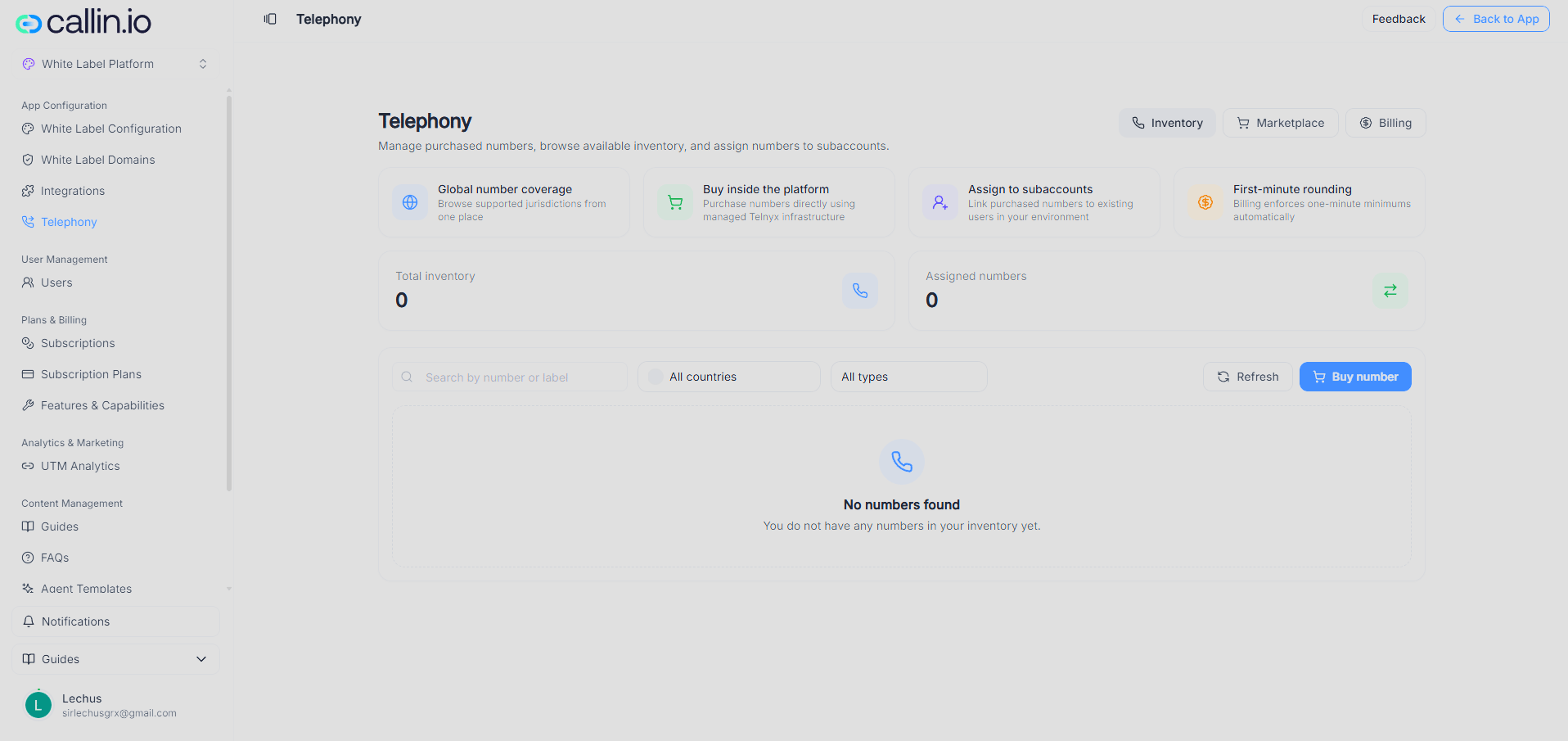
Screenshot: the Inventory tab. The counters at the top tell you how many numbers you own and how many are already assigned.
The first time you open Telephony, your inventory will be empty. That's normal — you'll see a **No numbers found** message until you make your first purchase. ### Counters Two counters sit at the top of the tab and give you the state of your inventory at a glance: * **Total inventory** — the total number of phone numbers you own. * **Assigned numbers** — how many of those are already linked to a client's subaccount. The difference between the two tells you how many numbers are still free and ready to assign. ### Filters and actions The filter bar lets you find a specific number when your inventory grows: * **Search by number or label** — find a number by digits or by the label you gave it. * **All countries** — narrow the list to a single country. * **All types** — narrow the list to a single number type (we explain types in the next tab). * **Refresh** — reloads the list. Useful right after a purchase if the new number hasn't appeared yet. * **Buy number** — a shortcut that takes you to the **Marketplace** tab. > **Tip:** Give each number a clear label as soon as you buy it — for example, the client's company name. When your inventory grows, labels are what keep things readable. ### Assigning a number to a subaccount Once a number is in your inventory, you can assign it to any subaccount in your environment. The number stays in your inventory; the assignment is what authorizes the client to use it inside their agents. Every time you assign a number, the **Assigned numbers** counter goes up by one, so you can always see how much of your inventory is in use. ## Marketplace The **Marketplace** tab is the catalog of numbers available for purchase. This is where you go whenever a client needs a new number you don't yet have in your inventory.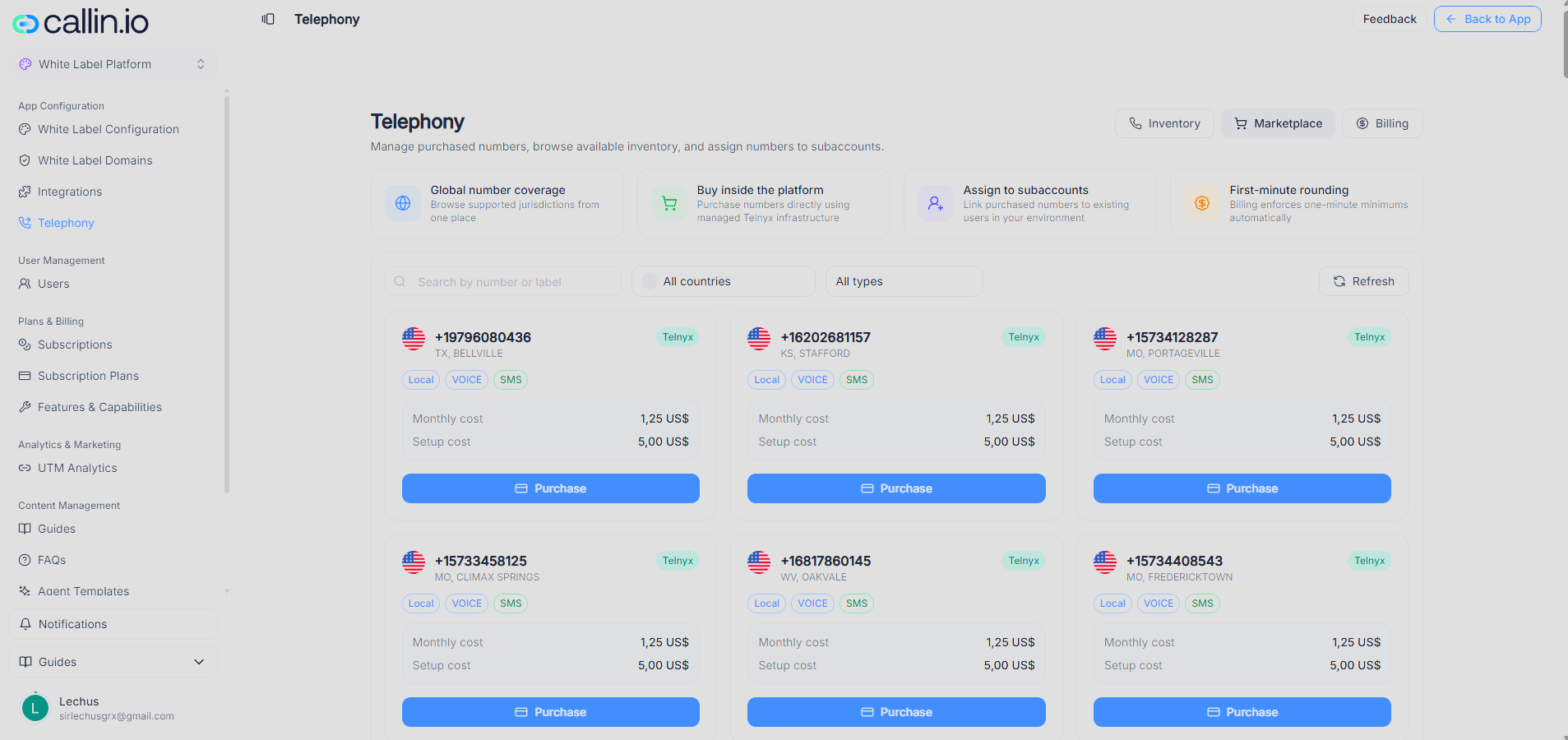
Screenshot: the Marketplace tab. Each card represents an available number and shows everything you need to know before purchasing it.
### What each card shows Every number is shown as an independent card with all the information you need to decide: * **The number itself**, in international format. * **Country flag** and the city or region (for example, `TX, BELLVILLE`). * **Carrier** — the underlying provider that supplies the number (for example, Telnyx). * **Number type** — Local, Mobile, or Toll-free. Explained below. * **Capabilities** — `VOICE` and/or `SMS`, depending on what the number supports. * **Monthly cost** — the recurring fee charged every month while the number is active. * **Setup cost** — a one-time charge for activating the number. * **Purchase** — the button to buy it. ### Number types When you buy a phone number, you're not just choosing digits — you're choosing how callers perceive it and what it can do. You can filter the catalog by type: * **Local** — a number tied to a specific city or region (for example, US numbers attached to a state). Callers see a familiar area code, which helps with answer rates for local businesses. * **Mobile** — a number that lives on mobile networks. In some countries, mobile and local numbers behave differently, especially for SMS. * **Toll-free** — a number where the caller pays nothing; the cost falls on the line owner. Typical for national customer support lines. > **Tip:** Match the number type to what your client's customers will recognize. A local number for a neighborhood business; toll-free for a national support line. ### Searching and filtering The Marketplace has the same filter bar as Inventory: * **Search by number or label** — find specific digits. * **All countries** — browse by country. * **All types** — narrow to a single type. * **Refresh** — reloads the catalog. > **Common mistake:** Buying a number without checking its capabilities. A `VOICE`-only number can't send SMS, and an `SMS`-only number can't take calls. Always read the capability tags on the card before clicking **Purchase**. ### What happens after a purchase Once you click **Purchase** on a card and confirm: * The number is activated under your account. * It appears immediately in your **Inventory** tab. * The monthly cost starts counting from the activation date. * You can assign the number to any client subaccount whenever you're ready. ## Billing The **Billing** tab explains the rules that apply to every call made through the platform. There's nothing to configure here — the page is informational, but worth reading once so nothing on your invoice catches you by surprise.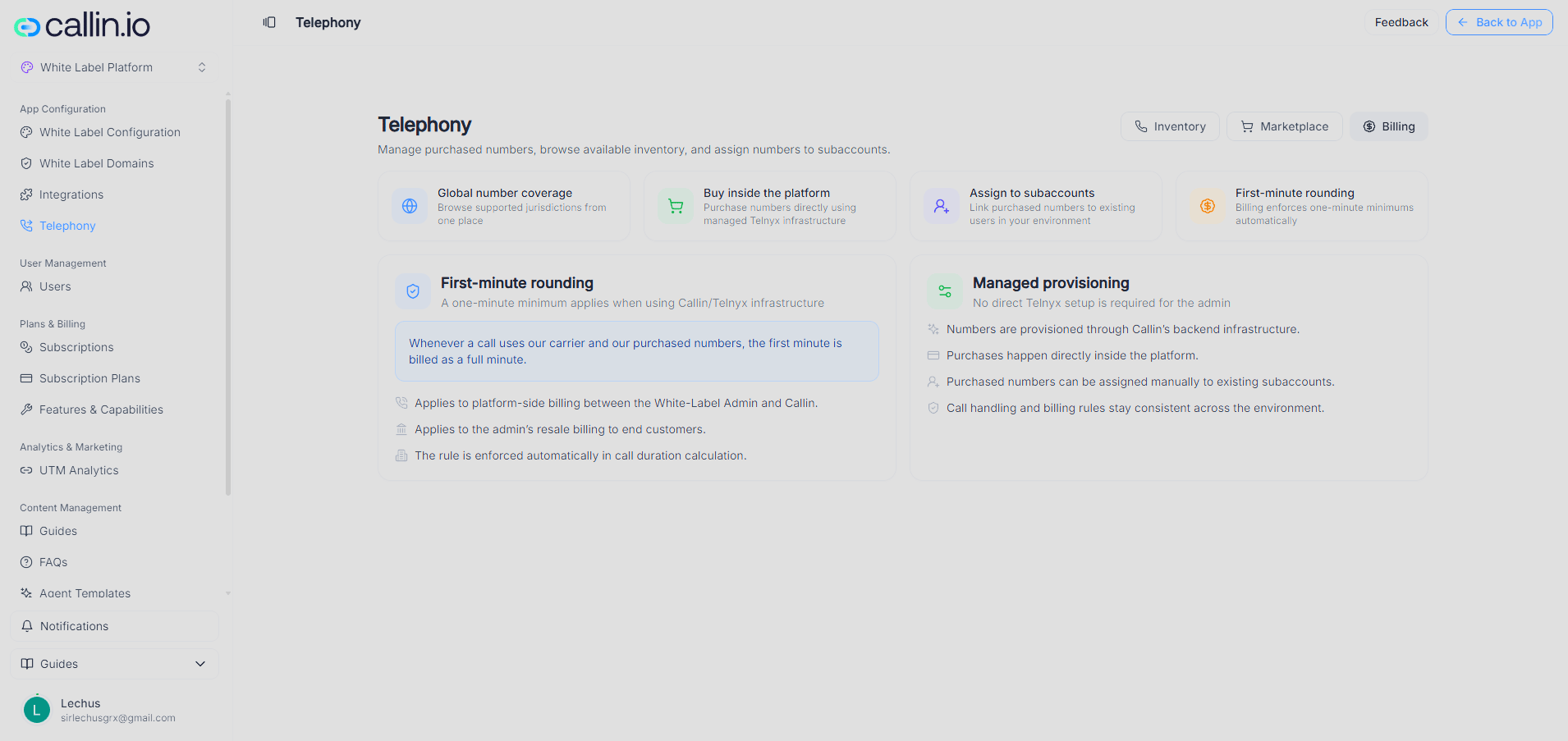
Screenshot: the Billing tab. The two blocks summarize how minutes are billed and how number provisioning is handled behind the scenes.
### First-minute rounding Whenever a call uses Callin's carrier and the numbers you bought through the platform, the **first minute is billed as a full minute**, even if the call lasts only a few seconds. After that first minute, billing continues normally based on real call duration. In practical terms: * It applies to the platform-side billing between you (the White Label admin) and Callin. * It applies to the resale billing you set up for your own end clients. * The rule is enforced automatically when call duration is calculated — you don't need to configure anything. > **Important:** Take this rule into account when you set your client-facing prices. If you charge per minute, your minimum chargeable unit should be one minute or higher. Otherwise short calls will cost you more than you're collecting. ### Managed provisioning This section confirms that you, as a White Label admin, **don't need to set up Telnyx by yourself**. Everything is handled by Callin's backend: * Numbers are provisioned through Callin's managed infrastructure. * Purchases happen directly inside the platform. * Purchased numbers can be assigned manually to any existing subaccount at any time. * Call handling and billing rules stay consistent across your whole environment. In short: you focus on selling phone numbers and capacity to your clients; the carrier-side complexity is invisible. > **Tip:** When a client asks about call quality, coverage, or how the system is wired, you can confidently answer that the platform runs on managed Telnyx infrastructure — there's nothing they need to integrate on their side.