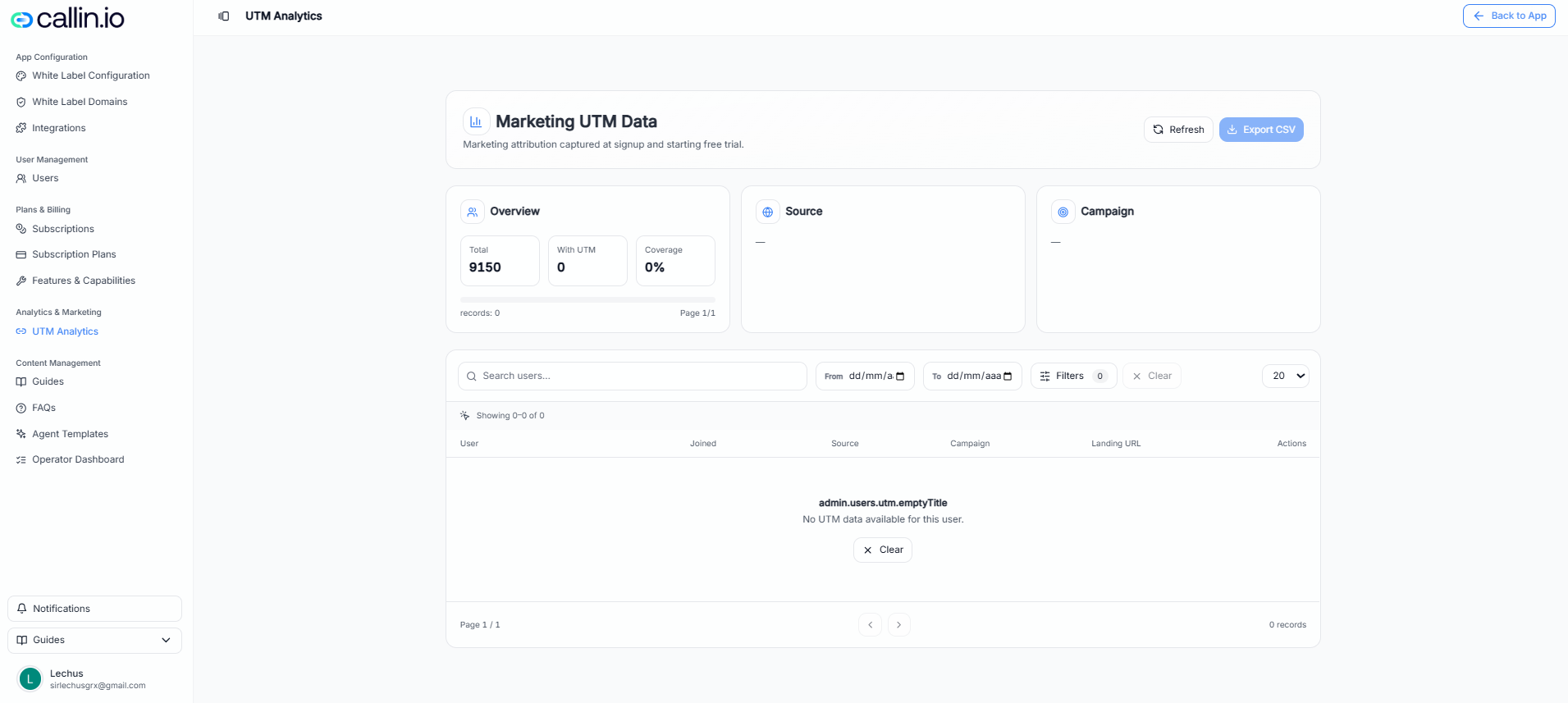
Screenshot: UTM Analytics dashboard with summary metrics, breakdown panels, filters, and an export option for the full list.
> **Tip:** If you see 0 records or “no UTM data,” it usually means users signed up without UTM parameters in the link, or the campaign hasn’t generated signups yet. ## How to read the dashboard At the top you’ll typically see summary metrics such as: * **Total**: total users/signups in the current view * **With UTM**: how many have UTM attribution captured * **Coverage**: the percentage of users in the view that include UTM data On the right, you may also have quick actions like: * **Refresh**: reload the latest data * **Export CSV**: download the list for reporting > **Important:** Labels and available fields can vary depending on your account, plan, and UI language. ## How to search and filter ### Search Use the search bar to find a specific user (for example, by email or name). ### Date range Use the **From** and **To** date selectors to focus on a period (for example, “last 7 days” or “this month”). ### Filters Use **Filters** to narrow the results further (for example, by source or campaign—available options can vary). ### Clear Use **Clear** to reset filters and return to the default view. ## What UTM fields mean (in plain language) UTM parameters are labels added to a link so you can tell where traffic came from. Common fields you’ll see: | Field | What it means | Example | | ----------- | --------------------------- | ---------------------------------- | | Source | The platform or origin | `google`, `facebook`, `newsletter` | | Campaign | The campaign name | `summer_promo`, `launch_2026` | | Landing URL | The page the user landed on | `/pricing`, `/signup`, `/promo` | > **Common mistake:** Using inconsistent names (e.g., `Facebook`, `facebook`, `fb`). Pick one style and stick to it so reports are clean. ## Practical examples ### Example 1: Tracking a paid ad If you’re running an ad, you might share a link like: * Source: `facebook` * Campaign: `starter_offer` Then, when users sign up via that link, you can quickly confirm the campaign is generating signups. ### Example 2: Comparing landing pages Send two versions of a landing page with different campaign names: * Campaign A: `pricing_page_test` * Campaign B: `homepage_test` After a week, use the date filter and compare results to see which landing page brought more signups (and with higher UTM coverage). ## When a user asks “Where did this signup come from?” A simple checklist: 1. Search the user in **UTM Analytics** 2. Check the user’s **Source** and **Campaign** 3. If it’s blank, confirm they used the correct link (with UTM parameters) > **Tip:** For consistent reporting, create a “link naming rule” for your team (for example: source in lowercase, campaigns with underscores, no spaces).