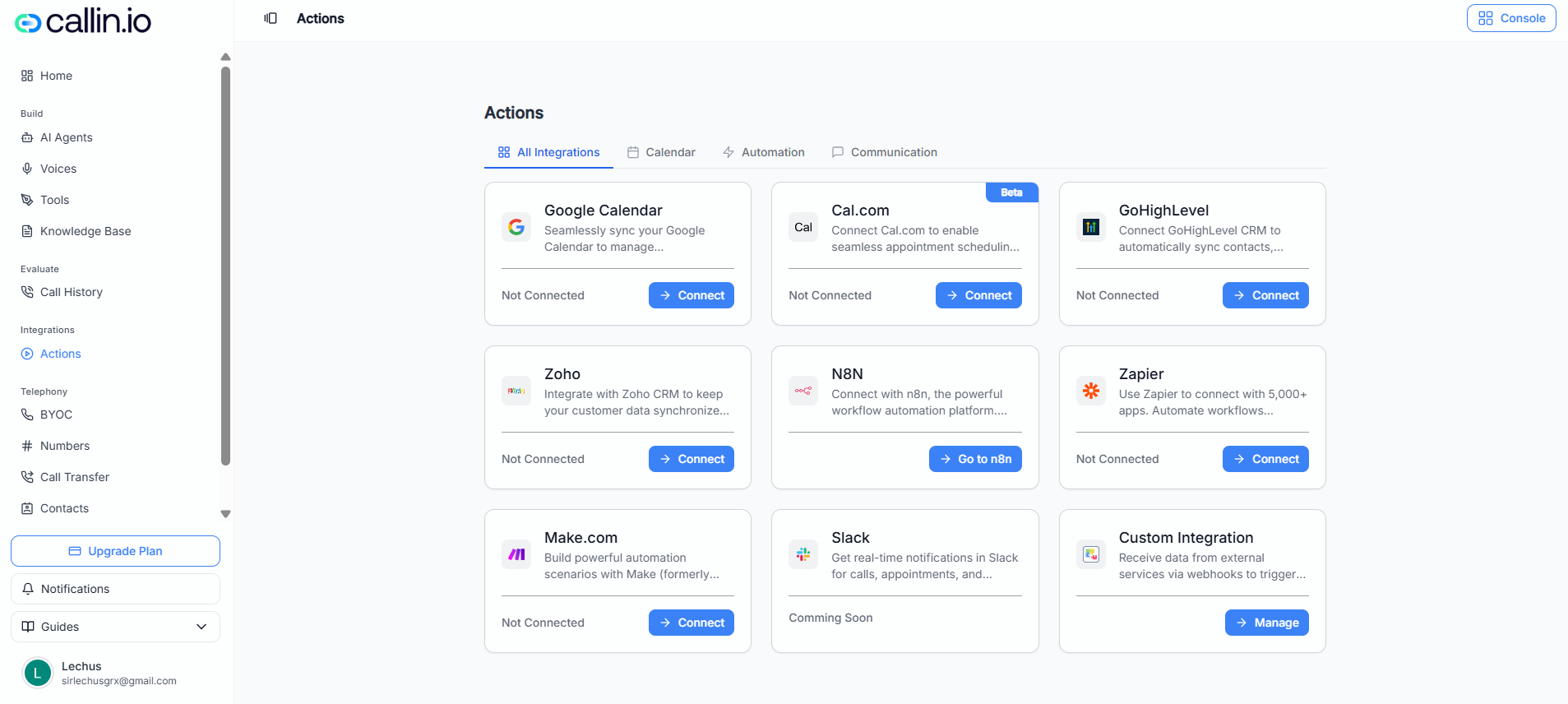
Screenshot: The Actions hub where you can connect external platforms to Callin. Each card shows whether it’s connected and what button to use (Connect, View, Manage, etc.).
> **Tip:** If you’re not sure where to start, begin with **Calendar** (for booking) or **Automation** (for workflows like follow-ups and CRM updates). ## Where to find it 1. Open your Callin Console. 2. In the left menu, go to **Integrations → Actions**. ## How connecting works Each integration card shows a status and an action button: * **Not Connected** → You’ll usually see **Connect**. * **Connected** → You may see **View** and **Disconnect** (example: Google Calendar). * **Coming Soon** → The integration is listed but not available to connect yet (example: Slack). * Some platforms may use a different button label (example: **Manage** for Custom Integration, or **Go to n8n**). General flow: 1. Click the integration card’s button (**Connect / Manage / View**). 2. Follow the platform’s authorization or setup steps. 3. Return to Callin and confirm the card status updates. > **Important:** The exact authorization screens can vary depending on your account, plan, or how your organization manages permissions. > **Common mistake:** Connecting the wrong account (for example, the wrong Google account) and later wondering why events or data appear in the wrong place. ## Available integrations Below is what each available platform is typically used for and how you connect it from the Actions page. ### Google Calendar **What it’s for**\ Use Google Calendar to keep appointments organized in a calendar your team already uses. **How to connect in Callin** * If it’s not connected, click **Connect** on the Google Calendar card and complete the Google authorization steps. * If it’s already connected (like in the screenshot), you’ll see: * **View** to review the connection details * **Disconnect** to remove the connection **Example uses with AI Agents** * A scheduling agent can coordinate times and keep confirmed appointments reflected in your calendar (for example: “Demo with Alex Rivera — Tue 3:30 PM”). * An agent can help reduce no-shows by using calendar details as the “source of truth” for upcoming meetings (for example, confirming: “You’re booked for Wednesday at 10:00 AM”). ### Cal.com (Beta) **What it’s for**\ Cal.com is an appointment scheduling platform. Connecting it can help align Callin with your scheduling setup. **How to connect in Callin** 1. Find **Cal.com** and click **Connect**. 2. Follow the steps shown during setup (may vary because it’s marked **Beta**). 3. Return to Actions and confirm it no longer shows **Not Connected**. **Example uses with AI Agents** * A booking agent can guide a customer to the right appointment type (for example: “15-minute intro call” vs. “30-minute onboarding”). * If your team uses Cal.com scheduling links, an agent can help route customers to the right option based on intent (sales, support, onboarding). > **Important:** Because this integration is labeled **Beta**, the setup flow and available options may change. ### GoHighLevel **What it’s for**\ GoHighLevel is a CRM platform. Connecting it helps you keep customer and lead information aligned between Callin and your CRM workflows. **How to connect in Callin** 1. On the **GoHighLevel** card, click **Connect**. 2. Complete the sign-in/authorization steps. 3. Confirm the integration status updates. **Example uses with AI Agents** * After a call, an agent can help ensure lead details are ready to be used in your CRM follow-ups (for example: name, interest, and next-step notes). * A sales agent can use what it learned during a call to support better handoffs (for example: “Interested in the Pro plan, wants pricing by email”). ### Zoho **What it’s for**\ Zoho is another CRM option. Use it if your team manages leads, contacts, or customer records in Zoho. **How to connect in Callin** 1. On the **Zoho** card, click **Connect**. 2. Follow the authorization steps. 3. Confirm the status changes from **Not Connected**. **Example uses with AI Agents** * A support agent can help capture the outcome of a customer call so your team can follow up in the CRM. * An agent can support consistent data entry by prompting for missing details during a conversation (for example: company size, preferred contact method). ### n8n **What it’s for**\ n8n is a workflow automation platform. It’s useful when you want to build custom automations that connect multiple tools together. **How to connect in Callin** * On the **n8n** card, click **Go to n8n**. * Follow the setup instructions shown there to create your workflow and connect it back to Callin (steps can vary based on how your n8n is hosted). **Example uses with AI Agents** * After an agent finishes a call, you can trigger an automation that notifies a team channel and creates a task for follow-up. * You can route call outcomes into different paths (for example: “booked demo” → notify sales, “needs support” → create a support ticket). ### Zapier **What it’s for**\ Zapier helps you connect Callin to thousands of apps and automate simple workflows without custom development. **How to connect in Callin** 1. On the **Zapier** card, click **Connect**. 2. Complete the connection steps. 3. Build “if this, then that” workflows in Zapier based on your needs. **Example uses with AI Agents** * When an agent collects a new lead, trigger a follow-up email sequence in your email tool. * When a call is completed, automatically send a summary to a spreadsheet or a project tracker for visibility. ### Make.com **What it’s for**\ Make (formerly Integromat) is another automation platform for building multi-step scenarios across tools. **How to connect in Callin** 1. On the **Make.com** card, click **Connect**. 2. Follow the connection steps shown during setup. 3. Build scenarios in Make to match your workflow. **Example uses with AI Agents** * If an agent qualifies a lead as “high intent,” trigger a multi-step workflow (for example: alert a salesperson, create a deal, schedule a task). * Send structured updates to internal tools your team already uses. ### Slack (Coming Soon) **What it’s for**\ Slack is commonly used for team notifications and internal communication. **Availability**\ In the screenshot, Slack shows **Coming Soon**, which means it’s visible in Actions but not available to connect yet. **Example uses with AI Agents (once available)** * Notify a channel when an agent books a meeting (for example: “New demo booked: Thu 2:00 PM”). * Alert support when a customer requests help during a call. ### Custom Integration **What it’s for**\ Custom Integration is for teams that want to connect Callin to their own systems or external services via webhooks. **How to connect in Callin** * Click **Manage** on the **Custom Integration** card. * Configure the webhook settings shown there (the available fields and options may vary by account or plan). **Example uses with AI Agents** * Send a call outcome to your internal dashboard (for example: “Qualified lead,” “Needs follow-up,” “Not interested”). * Trigger a custom workflow in your own backend whenever an agent completes a specific type of interaction. > **Tip:** Custom Integration is a good choice when you already have an internal tool and want Callin to “push” events into it. ## Troubleshooting ### The integration stays on “Not Connected” * Refresh the page and check again. * Try disconnecting and reconnecting (if the option exists). * Confirm you signed in with the correct account on the provider side. ### You connected the wrong account * Use **Disconnect** (if available), then reconnect and select the correct account during authorization. ### Buttons or options look different Some labels and setup steps can vary based on your plan, your organization settings, or provider changes.