> ## Documentation Index
> Fetch the complete documentation index at: https://support.callin.io/llms.txt
> Use this file to discover all available pages before exploring further.
# Call History
> Filter, export, and analyze past calls. Open call details to review the recording, transcript, and insights, and download audio when available.
## Overview
**Call History** is where you review past calls in your workspace. From this page you can:
* **Search and filter** calls (by phone number, agent, status, date range, and more)
* **See call outcomes** (for example, whether an appointment or voicemail was detected)
* **Export** the current list to **CSV**
* **Open call details** to analyze the conversation (recording, transcript, summary, key moments, sentiments)
* **Download** the call recording (when available)
Use this direct link to open the page:
[Open Call History](https://app.callin.io/call-history)
> **Tip:** Bookmark the link above if you review calls every day.
## Open Call History
1. In the left sidebar, go to **Evaluate**.
2. Click **Call History**.
## Filter and search calls
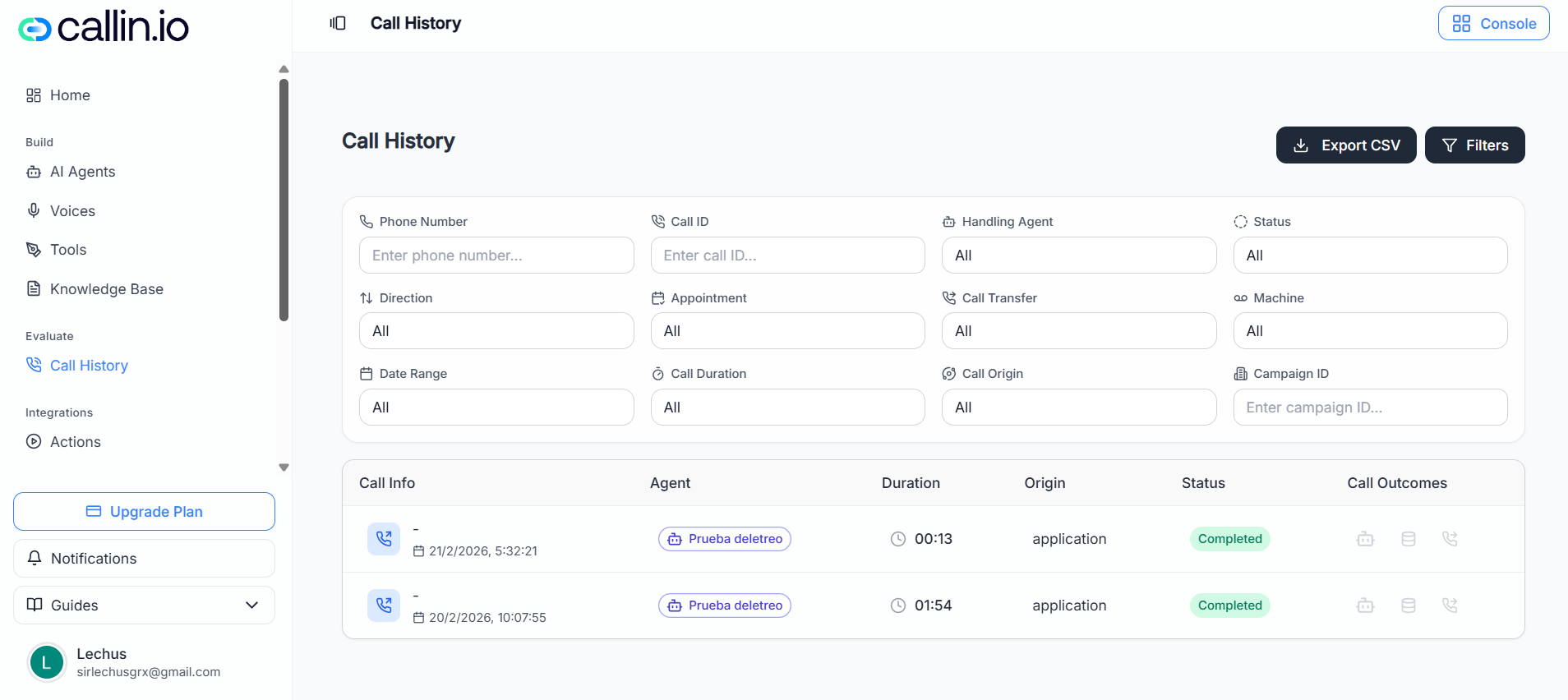
At the top of the page you’ll typically see two main actions:
* **Filters** (to narrow down the list)
* **Export CSV** (to download the results)
The filter area includes fields like the following (availability can vary by account/plan):
| Filter | What it helps you do | Example |
| -------------- | ----------------------------------------------- | -------------------- |
| Phone Number | Find calls for a specific number | Search for “+1 415…” |
| Call ID | Jump to a specific call | Paste a call ID |
| Handling Agent | See calls handled by a specific agent | “Sales Agent 1” |
| Status | Filter by call status | “Completed” |
| Direction | Separate inbound vs outbound calls | “Inbound” |
| Date Range | Focus on a time window | “Last 7 days” |
| Call Duration | Filter by length | “Over 1 minute” |
| Call Origin | Identify where the call came from | “Application” |
| Campaign ID | Filter by campaign identifier | Paste an ID |
| Appointment | Find calls with an appointment detected | “All” / filtered |
| Call Transfer | Find calls with transfer activity | “All” / filtered |
| Machine | Find calls where voicemail/machine was detected | “All” / filtered |
> **Common mistake:** Applying too many filters at once can return no results. If the table looks empty, remove one filter and try again.
Screenshot: Use the filter panel to narrow down calls before exporting or opening call details.
## Understand call outcomes (icons)
In the calls table, you may see a **Call Outcomes** column with icons that summarize what was detected during the call.
* **Calendar icon**: An **appointment** was detected for that call.
* If you **hover your mouse** over the calendar icon, you’ll see the appointment details.
* **Robot head icon**: A **voicemail / answering machine** was detected (the agent identified a voicemail).
> **Important:** Which outcomes appear can vary depending on what the system detects on each call.
## Export Call History to CSV
You can export the calls you’re currently seeing (including any filters you applied).
1. Click **Export CSV**.
2. In the export window, select the **columns** you want to include.
* You can use **Select All** or **Deselect All** to speed things up.
3. Click **Export CSV** to download the file.
> **Tip:** If you want “all calls,” clear filters before exporting.
## Open call details to analyze a call
To view everything about a specific call:
1. Click any call row in the table.
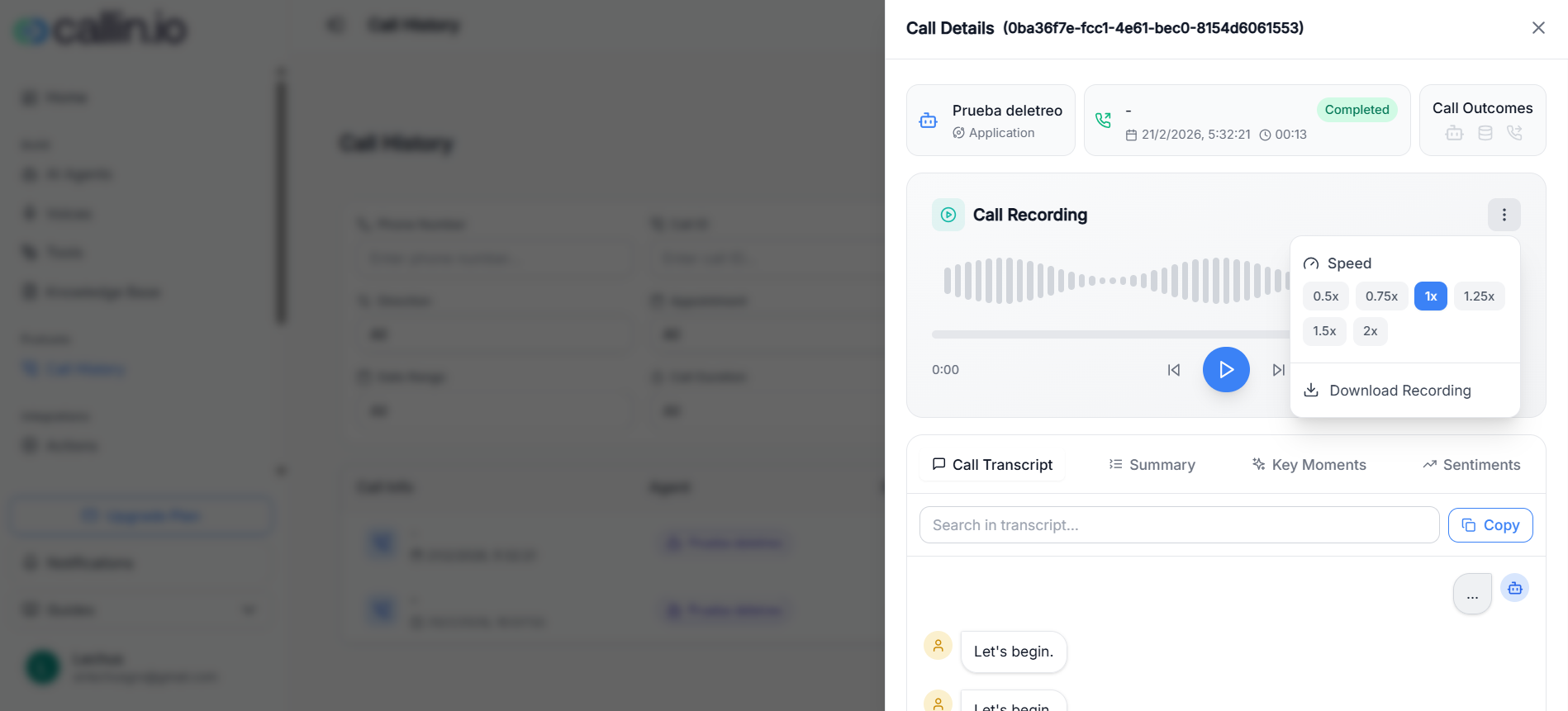
2. A **Call Details** panel opens on the right.
Inside **Call Details**, you can review and analyze the conversation. Depending on your account/plan, you may see:
* **Call Recording** player (with playback controls)
* A menu with **playback speed** options
* Tabs such as:
* **Call Transcript**
* **Summary**
* **Key Moments**
* **Sentiments**
* Actions like **Copy** (for example, to copy the transcript or selected content)
* Options to **download** items such as the **transcript** (availability can vary)
> **Tip:** Use the transcript search box to quickly find a specific phrase or moment in the call.
## Download call audio (recording)
To download the audio for a call (when a recording is available):
1. Click a call row to open **Call Details**.
2. In the **Call Recording** card, click the **three-dots (… )** menu.
3. Select **Download Recording**.
In the same menu, you can also adjust playback **Speed** (for example 0.5x, 0.75x, 1x, 1.25x, 1.5x, 2x).
> **Important:** If you don’t see **Download Recording**, recording may not be available for that call, or access can vary by plan and permissions.
Screenshot: Open a call, then use the “…” menu in Call Recording to change speed or download the audio.