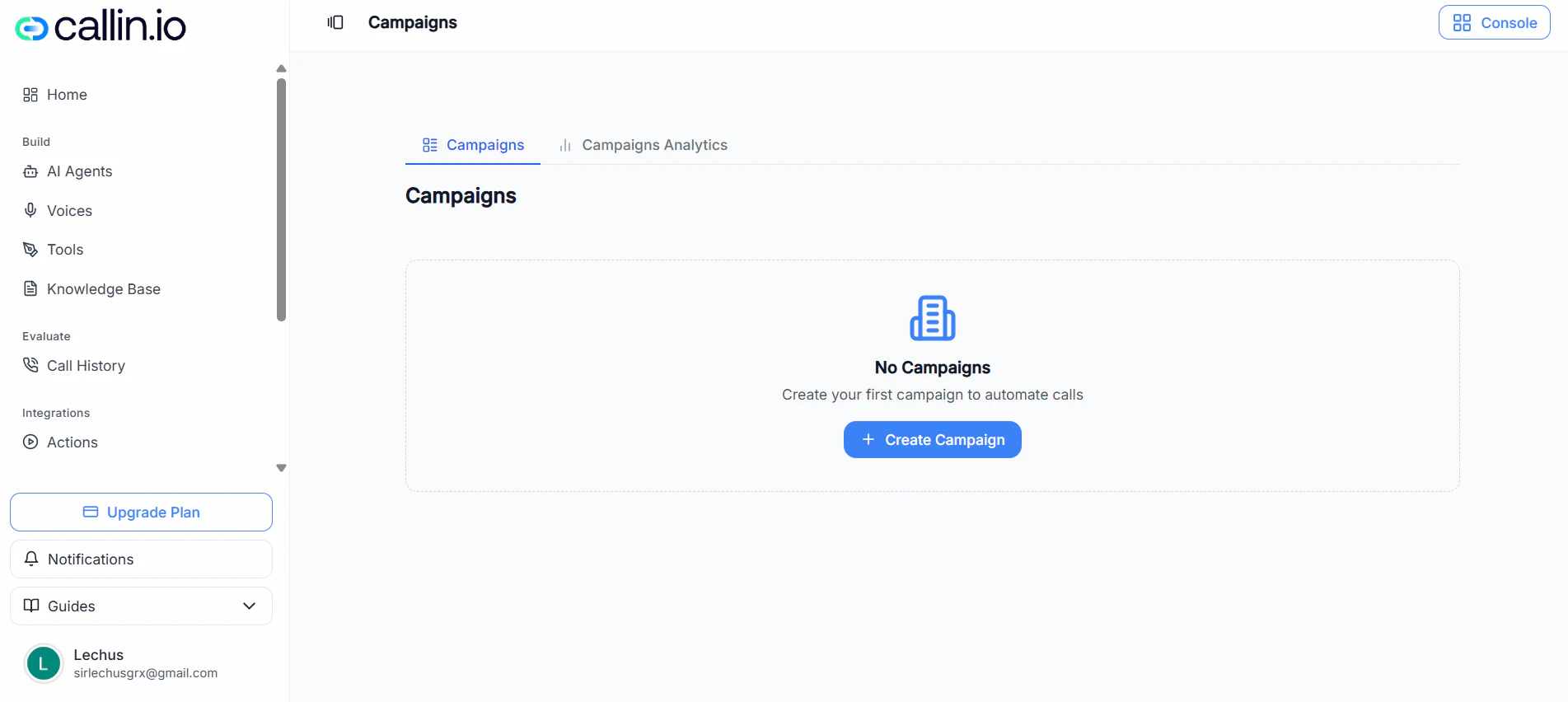
Screenshot: Your campaigns list, where you can filter, create new campaigns, and open a campaign to view details.
## Create a campaign Click **Create Campaign** to open the campaign setup panel. ### 1) Basic information Fill in: * **Campaign Name** (required) * **AI Agent** (required) > **Important:** The UI warns that the agent should have a number assigned during campaign execution. If the agent can’t place calls, the campaign won’t work properly. ### 2) Select contacts In **Select Contacts**, you can: * Search contacts using **Search contacts…** * Narrow the list with **Filters** * Select one or multiple contacts using the checkboxes * Navigate large lists using pagination * Use **Upload CSV** if you want to bring contacts into this campaign from a file > **Tip:** If your contacts are already in a spreadsheet, export them as a **.csv** file before uploading. ### 3) Map columns (when uploading CSV) If you upload a CSV, you’ll be asked to map columns before continuing. Typical fields include: * **Phone** (required) * **Name** (optional) * **Email** (optional) > **Common mistake:** Not mapping **Phone**. The campaign can’t add contacts without a phone number. ### 4) Launch options Under **Launch Options**, choose how and when the campaign runs: * **Launch Now**: starts immediately. * **Schedule for Later**: lets you set: * **Start Time** * **End Time** * **Timezone** You can also enable **Follow-up Calls** to automatically retry calls for contacts who didn’t answer or were busy. > **Important:** Follow-up behavior can vary by workspace settings. If you’re not sure how retries work in your account, run a small test campaign first. ## Manage campaigns ### Filter and find campaigns Use the filter bar to narrow down what you see, for example: * Search by **Campaign ID or Name** * Filter by **Status** * Limit results by **Date Range** * Toggle **Show Deleted** to view deleted campaigns (if available in your account) ### View campaign details Click **View** on a campaign card to open its details. Inside, you can typically see: * Campaign progress * Counters (e.g., in progress, busy, no answer, completed, failed) * A contact-level table with statuses and outcomes * A **Refresh** option to update results ### Delete a campaign (permanent) Campaign cards may include a delete (trash) icon. When you delete a campaign: * You’ll see a confirmation modal * You may be required to type **DELETE** to confirm > **Important:** Deleting a campaign is a **permanent action** and cannot be undone. ## Campaigns Analytics Switch to **Campaigns Analytics** to understand how campaigns performed over time. ### What you can review In the analytics overview, you can typically review metrics like: * Total calls * Average call duration * Usage * Appointments * Detection and success rates * Trends and breakdowns (volume over time, outcomes, key metrics)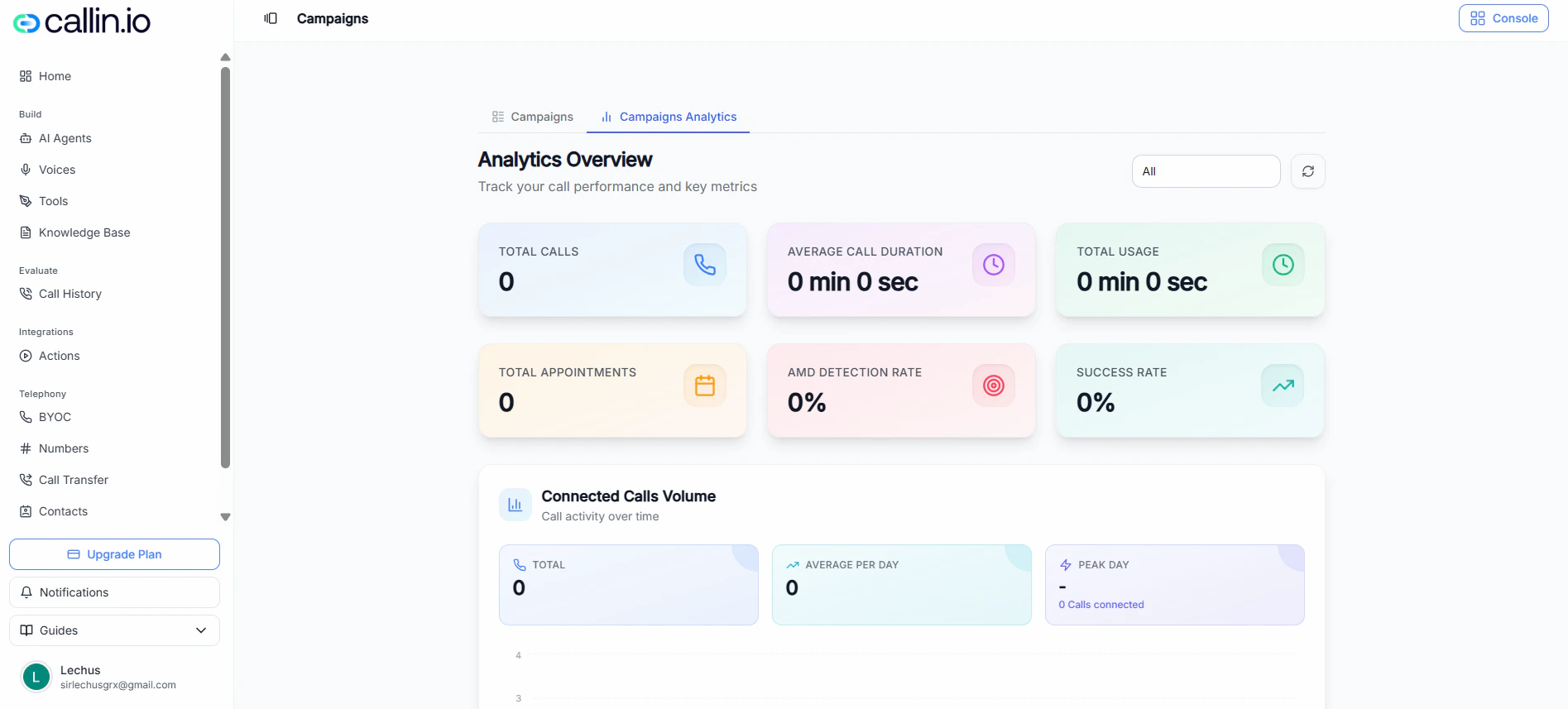
Screenshot: Campaigns Analytics overview, where you can review performance metrics and trends.