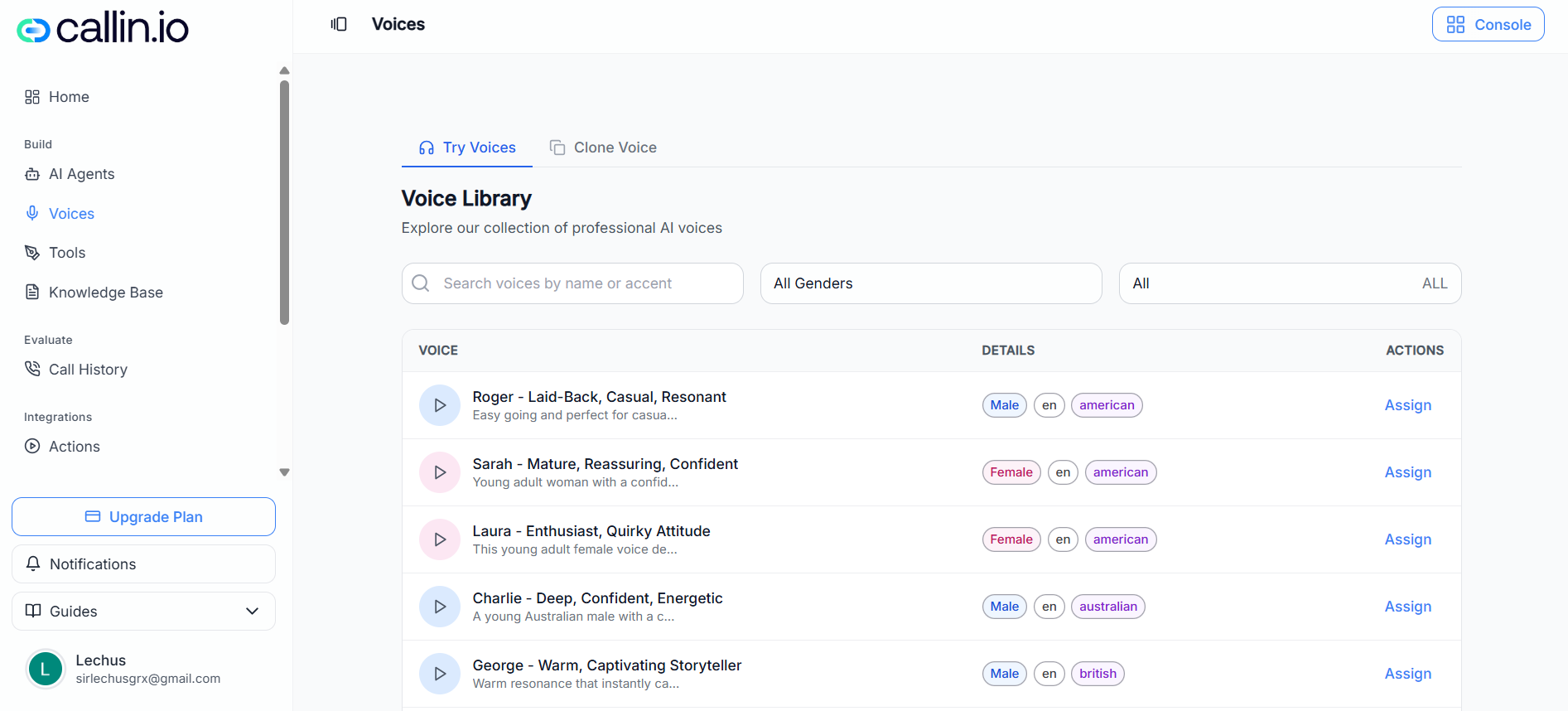
Screenshot: The Voices page where you can preview voices in the library and switch to the Clone Voice tab to create a custom voice.
## Browse and preview voices (Try Voices) By default, you’ll land on **Try Voices**. This is the **Voice Library**, where each row includes: * A **Play** button to preview the voice * The **voice name** plus a short style description (for example: “laid-back”, “reassuring”, “energetic”) * **Details tags** like gender, language, and accent (for example: **Male**, **en**, **american**) * An **Assign** action on the right to use that voice with an agent You can also narrow down the list using: * The **search bar** (search by name or accent) * Filters such as **gender** and other available dropdowns (options can vary by account/plan) > **Tip:** When previewing voices, use the same short script each time so it’s easy to compare. > > Example: “Hi! This is Maya from Lakeside Dental. I’m calling to confirm your appointment for Thursday at 3 PM.” ## Assign a voice to an agent To make an agent speak with a specific voice: 1. In **Try Voices**, find the voice you want. 2. Click **Assign** on the right side of that voice. 3. In the **Assign Voice to Agent** window, select the agent you want to update. 4. Click **Assign** to confirm. After you assign it, that agent will use the selected voice when speaking on calls. > **Important:** You can change a voice later by assigning a different one. Voice assignment is typically set per agent (not global). ## Clone a voice (Clone Voice) If you want a more custom sound (for a brand voice or a specific persona), use **Clone Voice**. 1. Open the **Clone Voice** tab. 2. Click **Clone Voice**. 3. In the form (shown as a “Voice Preview” window), fill in: * **Voice Name** (required) * **Description** (optional) * **Language** (required) * **Gender** (required) 4. Add a **Voice Sample** (required) using one of the options shown: * **Upload Audio** * **Record Voice** 5. Follow the on-screen steps to submit your sample. Once your cloned voice is created, it will appear under **Your Cloned Voices** and can be assigned like any other voice. > **Common mistake:** Uploading a clip that’s too short or has background noise. Your clone will sound noticeably worse if the sample isn’t clean. ## Voice cloning guidelines and best practices When recording or uploading your sample, follow these guidelines: * Record in a **quiet environment** with minimal background noise * **Speak clearly** at a natural pace * For uploaded files, provide **at least 30 seconds** of continuous speech * Maximum file size is **4MB** * Supported languages include: **English, Italian, French, German, Portuguese, Spanish, Dutch, Arabic, and Hindi** > **Important:** Only upload audio you have permission to use (for example, your own voice or a voice you’re licensed to use).