

What this page is for
The Integrations page is where you connect your White Label app to the services that make day-to-day operations possible:- Payments & subscriptions (so you can charge customers)
- Voice and SMS (so calling and messaging features work)
- Email sending (so customers receive important emails)
- Live chat (so customers can contact your team in real time)
- Marketing tracking (so you can measure acquisition and conversions)
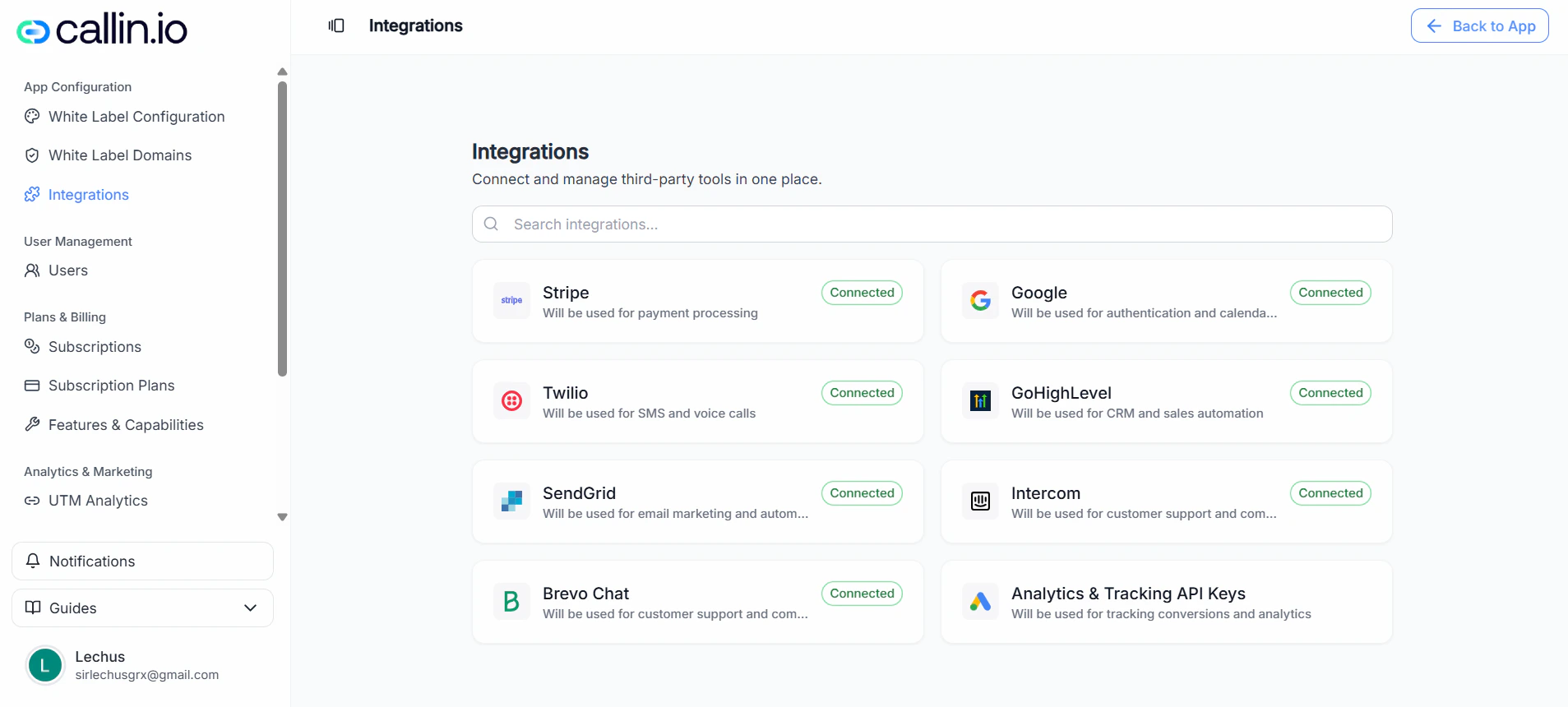
Screenshot: the Integrations overview. Each card opens a setup panel with the exact fields you must fill in.
Important: Card badges like Connected or Required reflect your current setup and can vary depending on your account and plan.
Before you connect anything
A few habits make integrations smoother (and safer):- Use the right admin account in each provider (Stripe, Twilio, etc.) so you can access keys and settings.
- Store keys securely (treat them like passwords).
- Limit access to people who need it. Don’t paste keys into shared docs or chats.
Tip: If an integration doesn’t work immediately, double-check for extra spaces at the beginning/end of a key before trying anything else.
How connecting an integration works
Most integrations follow the same pattern:- Click an integration card (for example Twilio or SendGrid).
- A side panel opens with required fields (marked with
*). - Copy the values from the provider dashboard.
- Paste them into Callin and click Save.
Stripe
What it’s for: Stripe is used for payment processing. This is the integration that typically enables you to run a real subscription business: accepting payments, charging customers, and managing subscriptions. When you need it: If you plan to create paid plans and charge customers (monthly, yearly, etc.), Stripe is one of the first integrations to set up.What you’ll need (as shown in the panel)
- Secret Key*
- Webhook Secret*
- Webhook Secret Connect*
- Client ID*
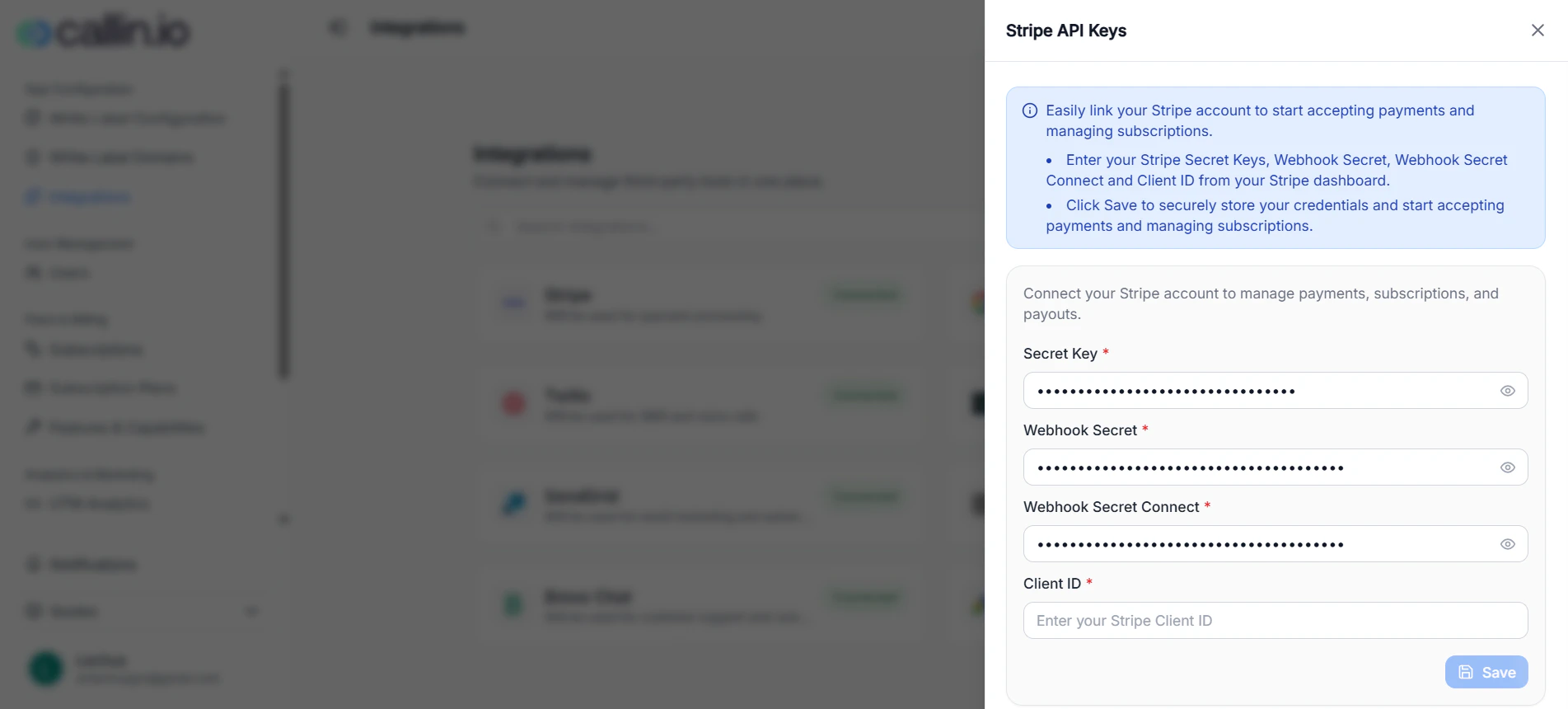
Screenshot: Stripe setup requires four values and is saved with the Save button.
How to connect Stripe
- Open the Stripe card.
- In your Stripe dashboard, copy the required values.
- Paste each value into the matching field in Callin.
- Click Save.
Important: If you rotate keys or change webhook settings in Stripe later, you must come back here and update the values.
Twilio
What it’s for: Twilio powers voice calls and SMS. It’s the integration that makes calling and messaging features possible and also supports phone number management. When you need it: If your White Label includes inbound/outbound calls or SMS, Twilio will usually be essential—and may appear as Required.What you’ll need (as shown in the panel)
- Account SID*
- Auth Token*
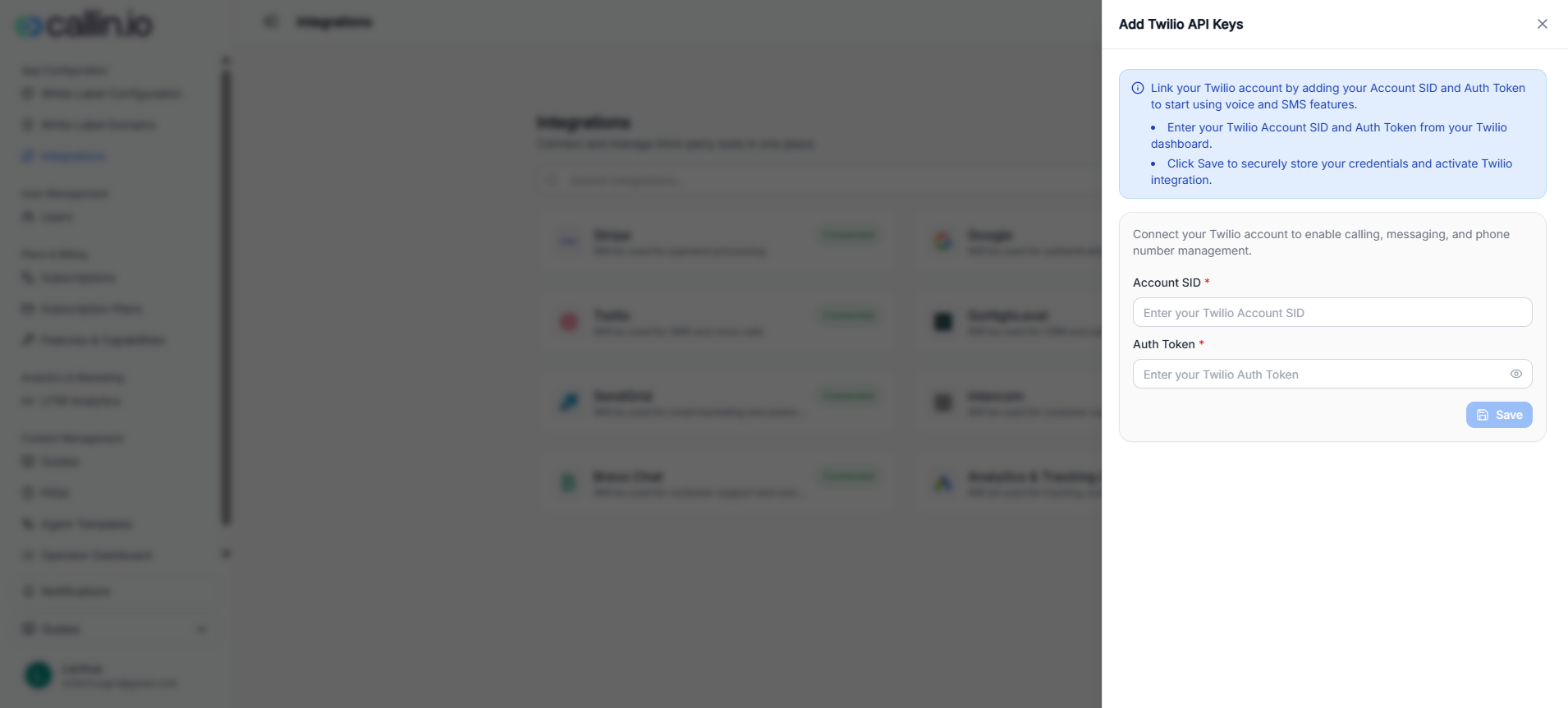
Screenshot: Twilio setup requires an Account SID and Auth Token.
How to connect Twilio
- Open the Twilio card.
- From your Twilio dashboard, copy your Account SID and Auth Token.
- Paste them into the corresponding fields in Callin.
- Click Save.
Tip: If calling/SMS doesn’t work later, Twilio is the first integration to re-check.
SendGrid
What it’s for: SendGrid is used to send emails from your White Label app—especially automated and notification emails customers rely on (for example: confirmations and system messages). When you need it: If your customers should receive emails from your branded experience, set up SendGrid early.What you’ll need (as shown in the panel)
- API Key*
- Sender Email* (a verified sender email)
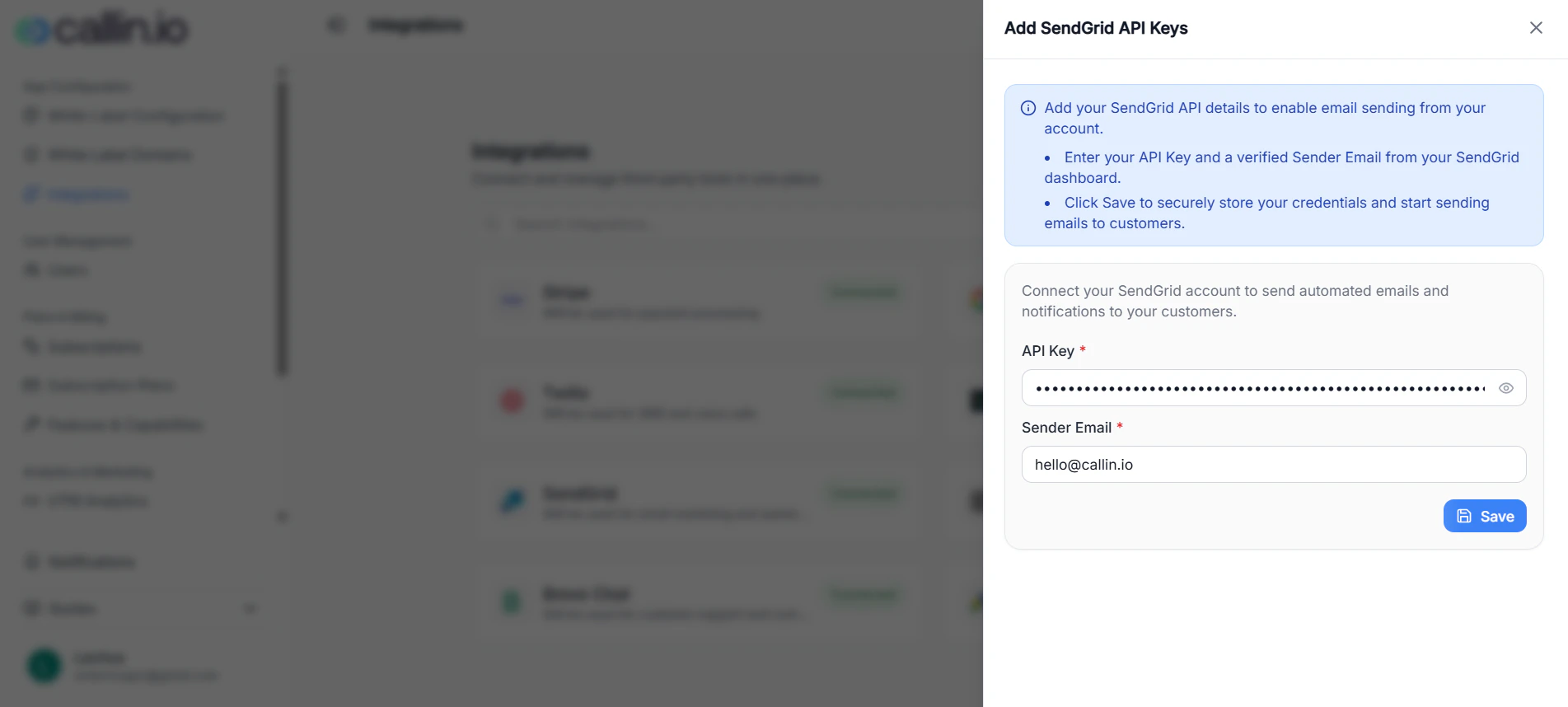
Screenshot: SendGrid setup requires an API Key and a Sender Email.
How to connect SendGrid
- Open the SendGrid card.
- Copy your API Key from SendGrid.
- Enter a Sender Email that is verified in SendGrid.
- Click Save.
Common mistake: Using a sender email that isn’t verified in SendGrid. If emails don’t send, verify the sender first.
Intercom
What it’s for: Intercom enables live chat and customer support inside your app. It’s a common option when you want customers to message your team without leaving the product. When you need it: If support and onboarding are part of what you sell, Intercom can make your White Label feel more “product-ready.”What you’ll need (as shown in the panel)
- App ID* (from Intercom workspace settings)
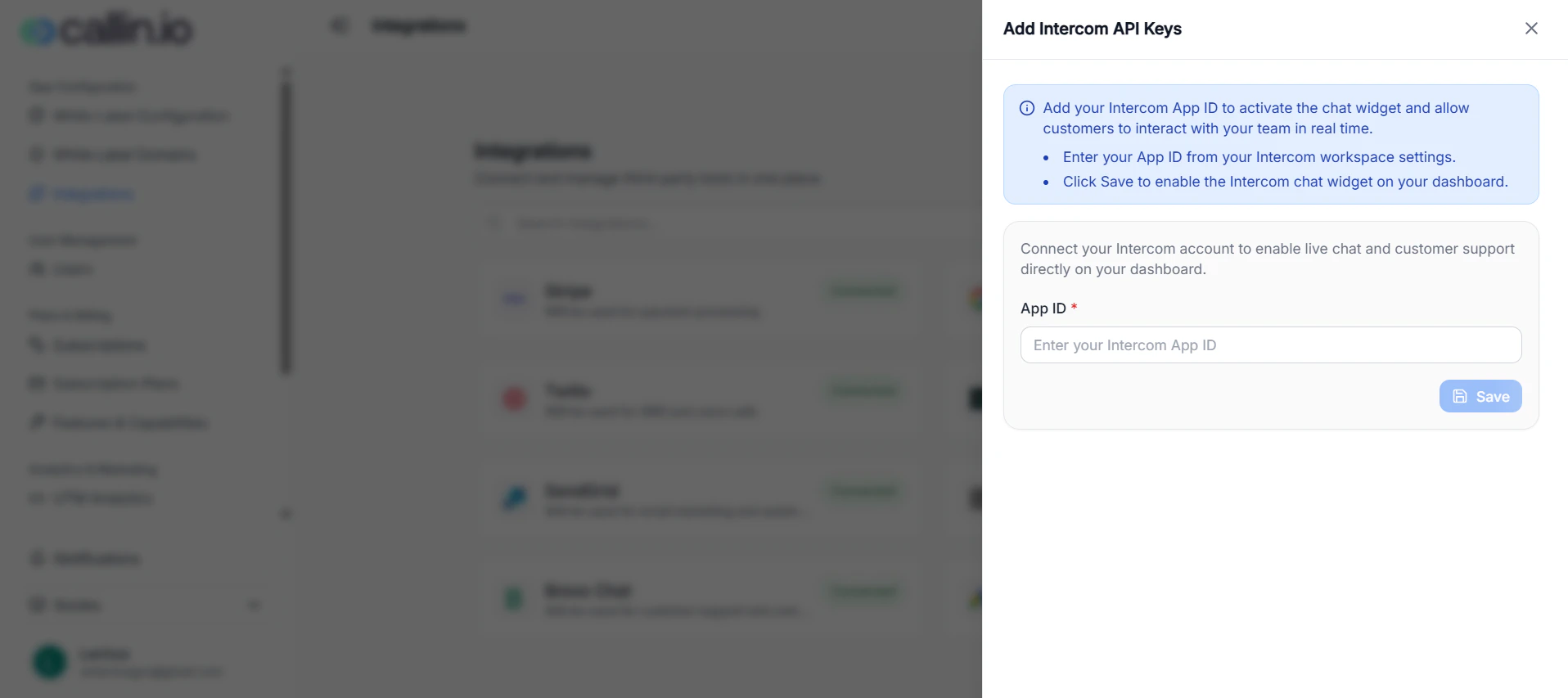
Screenshot: Intercom setup requires an App ID.
How to connect Intercom
- Open the Intercom card.
- Find your App ID in your Intercom workspace settings.
- Paste it into Callin and click Save.
Tip: Use the Intercom workspace that matches your support team. That way, customer messages go to the right place.
Brevo Chat
What it’s for: Brevo Chat enables a chat widget for real-time customer conversations. The panel references Brevo (formerly Sendinblue), and the goal is to activate chat using a widget key. When you need it: If you prefer a lightweight chat widget experience (instead of Intercom), Brevo Chat is an option.What you’ll need (as shown in the panel)
- Chat Widget Key* (also described as a Chat Widget Key/API Key)
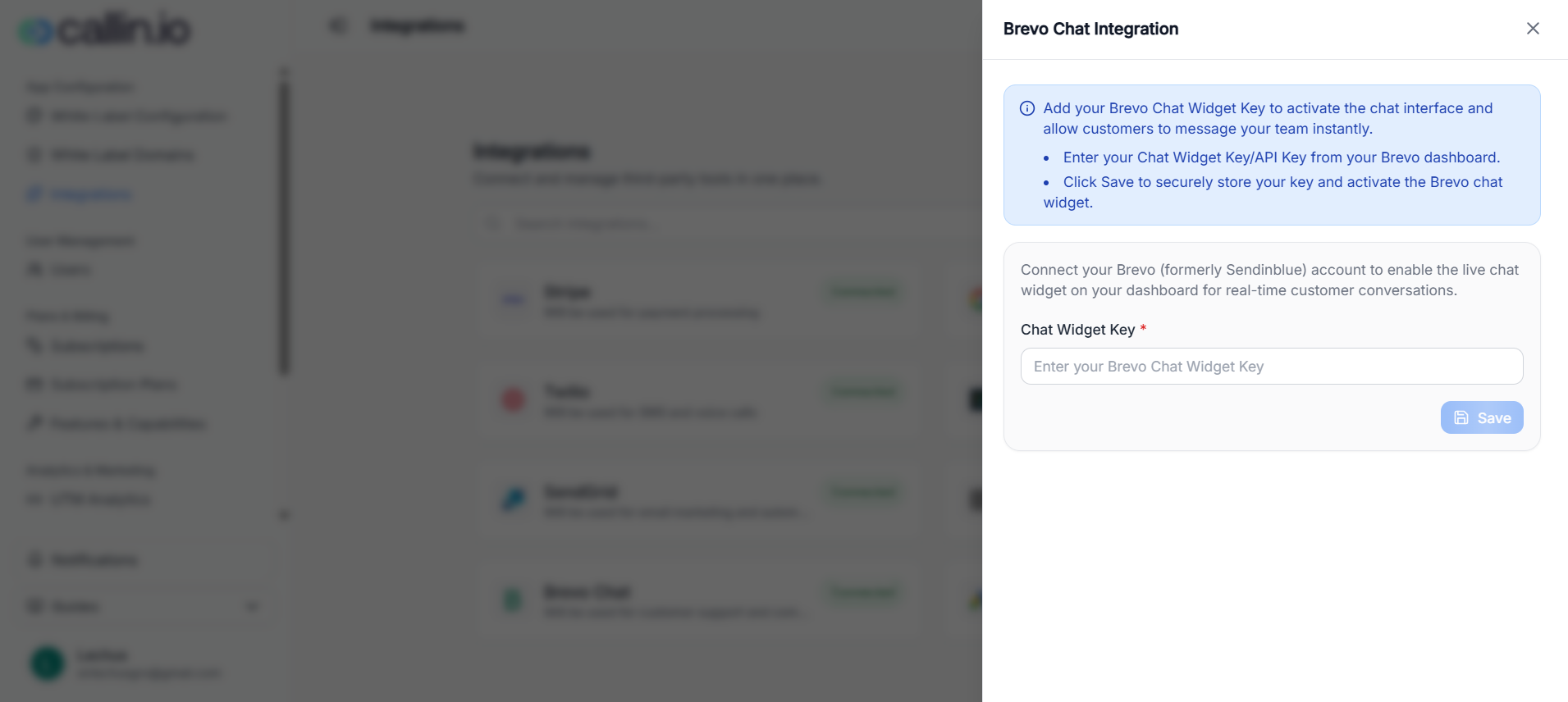
Screenshot: Brevo Chat setup requires a Chat Widget Key.
How to connect Brevo Chat
- Open the Brevo Chat card.
- In your Brevo dashboard, copy your Chat Widget Key (or Chat Widget Key/API Key).
- Paste it into Callin and click Save.
Important: Keep the widget key private. Anyone with access could potentially use it in another environment.
Analytics & Tracking API Keys
What it’s for: This integration connects your White Label to marketing and analytics tracking. Based on the setup instructions shown in the panel, it supports:- Google Ads tracking via a Pixel ID
- Google Analytics (GA4) tracking via a Measurement ID
What you’ll need (as shown in the panel)
- Google Ads Pixel ID (example format:
AW-123456789) - Google Analytics Measurement ID (GA4) (example format:
G-XXXXXXXXXX)
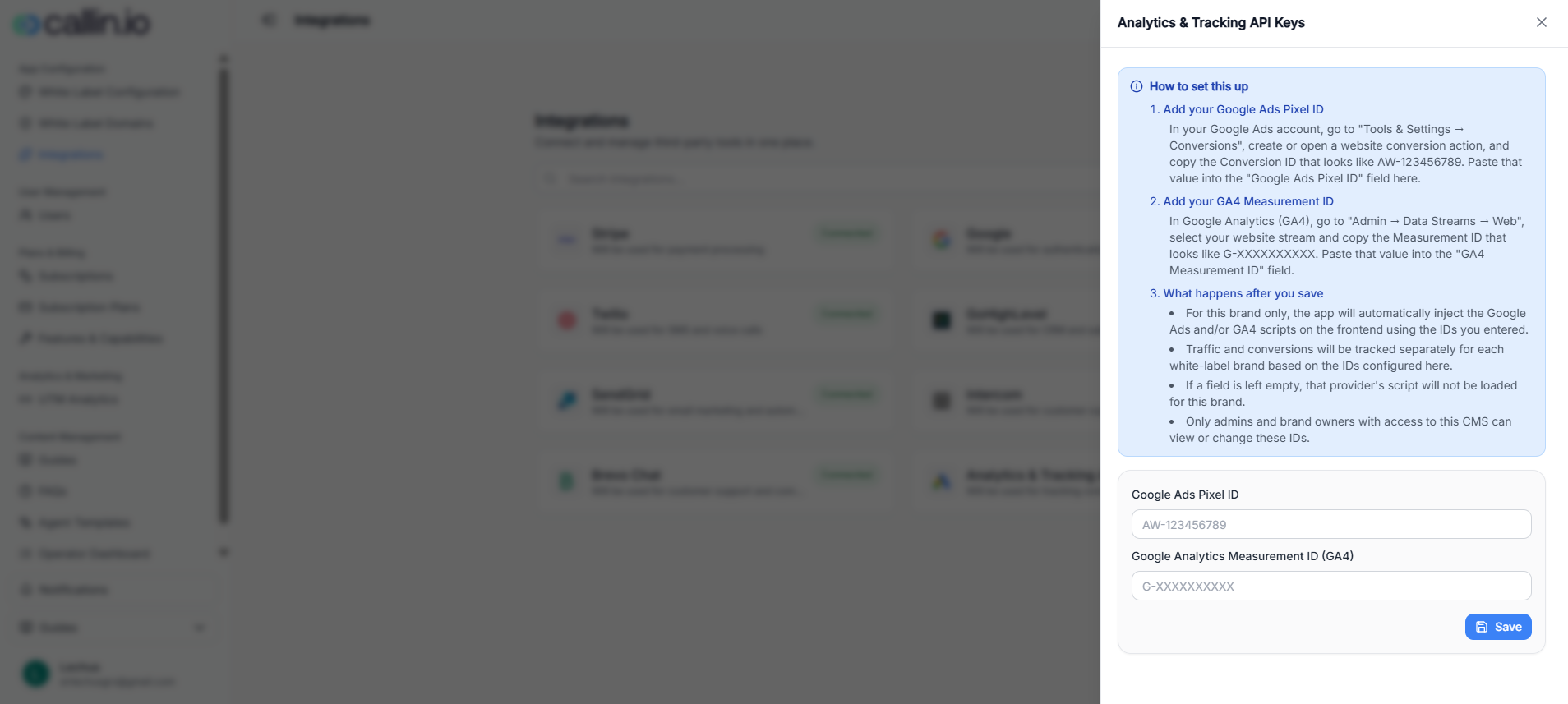
Screenshot: tracking setup where you paste your Google Ads and GA4 IDs and then save.
How to connect tracking
- Open Analytics & Tracking API Keys.
- In Google Ads, copy your Google Ads Pixel ID and paste it into the matching field.
- In Google Analytics (GA4), copy your Measurement ID and paste it into the GA4 field.
- Click Save.
What happens after you save (as described in the panel)
- Tracking scripts can be injected using the IDs you entered (for this brand).
- If a field is left empty, that provider’s script should not load for this brand.
- Access to view/change these IDs is limited to users with the right level of access (as noted in the panel).
Tip: Keep a simple checklist for every new brand you launch: connect tracking early so you don’t lose attribution data during your first campaigns.