

Overview
Custom Agent Templates let you pre-create a “ready-to-use” agent setup that your subaccounts can apply when creating new agents. Instead of configuring everything from scratch each time, you decide which settings are included in the template, pre-fill their values, and your users fill in only what’s needed. Use this section when you want:- Consistent agent behavior across multiple subaccounts.
- Faster onboarding for new users.
- A curated set of “approved” agent configurations.
Video: the empty page → Create Template → Select Fields to Include → Set Default Values → Pre Deployed and Template Status → the template in the list → the row menu.
Open Agent Templates
You’ll find it in the White Label Platform, under Content Management (open it here). The list shows each template’s Template Name (with its description), the number of Fields it includes, its Status and the Created At date. Use Search templates… to find one.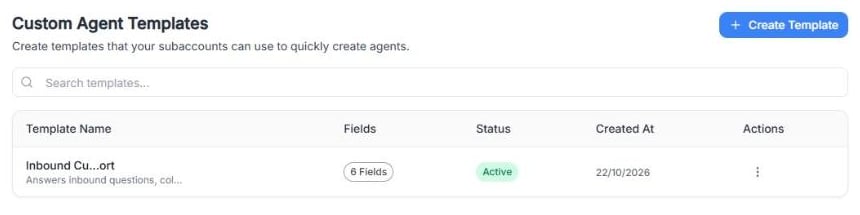
Screenshot: the list with an example template.
Create a template
1
Open Custom Agent Templates.
2
Click Create Template. A panel opens on the right.
3
Fill out the template details (both required):
- Template Name: A clear name your subaccounts will recognize.
- Description: A short explanation of what the template is for.
4
Choose the fields to include and set their default values (see below).
5
Click Create Template at the bottom of the panel.
Choose what subaccounts can configure
Under 1. Select Fields to Include, you’ll see a list of checkboxes.Checked = included in the template flow for subaccounts.
Unchecked fields won’t be part of the template setup.
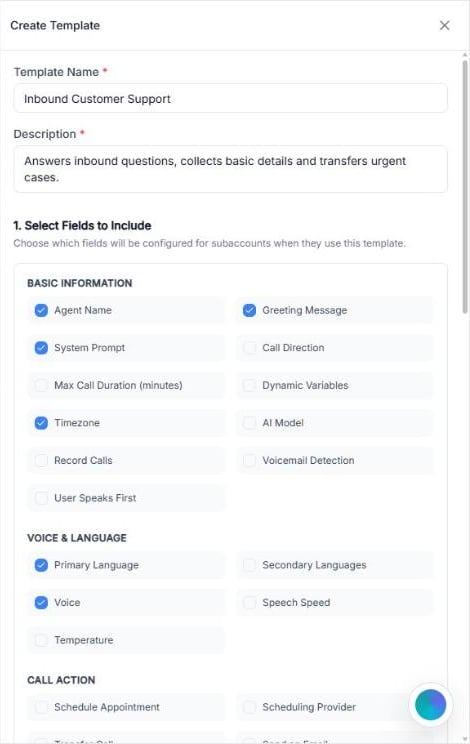
Screenshot: an example template with six fields checked.
Basic information
You can include fields such as:- Agent Name
- Greeting Message
- System Prompt
- Call Direction
- Max Call Duration (minutes)
- Dynamic Variables
- Timezone
- AI Model
- Record Calls
- Voicemail Detection
- User Speaks First
Voice & language
You can include fields such as:- Primary Language
- Secondary Languages
- Voice
- Speech Speed
- Temperature
Call action
You can include fields such as:- Schedule Appointment
- Scheduling Provider
- Transfer Call
- Send an Email
- Opt-Out Call
- Data Extraction
- Data Extraction Entities
- Post Call Webhook
- Webhook URL
- Retry Count
- Retry Delay (minutes)
Set default values
As soon as you check a field, it appears under 2. Set Default Values. There you pre-fill its value: subaccounts start from it when they create an agent with this template. Each field shows a short help text. For example:- Agent Name: the name of the agent (the subaccount can override it).
- Greeting Message: the first message the agent says when a call starts.
- System Prompt: the instructions that define the agent’s behavior.
- Timezone: affects time-related responses. It starts at UTC.
- Primary Language: the main language the agent will use.
- Voice: the voice the agent uses, chosen from the ElevenLabs list.
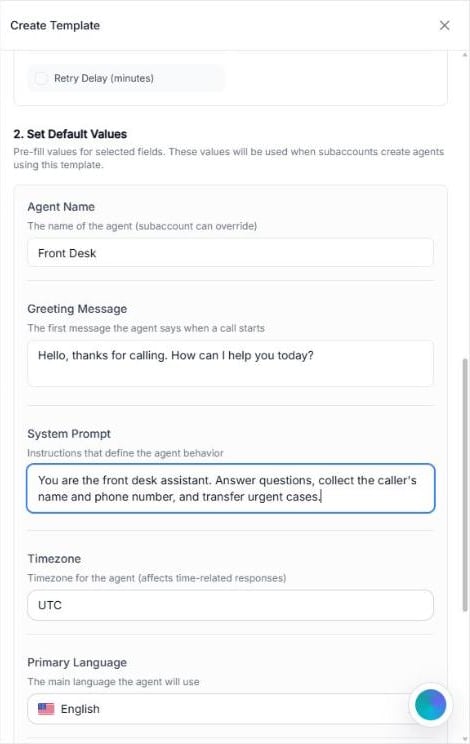
Screenshot: default values for the example template.
Pre-deployed templates
At the bottom of the panel you’ll see Pre Deployed. When enabled, an agent will be automatically created using this template in newly registered user accounts.Template status
You’ll also see Template Status. It’s on by default.Only active templates are visible to subaccounts. Use this when you want to:
- Temporarily hide older templates without deleting them.
- Keep only your recommended templates available.
- Edit Template opens the same panel, so you can change fields, default values, Pre Deployed or Template Status.
- Delete Template removes it.
Example: a practical template setup
Here’s a realistic way to structure a template for an inbound support agent: Template Name: Inbound Customer SupportDescription: Answers inbound questions, collects basic details and transfers urgent cases. Fields to include (recommended):
- Agent Name
- Greeting Message
- System Prompt
- Timezone
- Primary Language
- Voice
- Transfer Call (only if your workflow includes escalation)
- Agent Name: “Front Desk”
- Greeting Message: “Hello, thanks for calling. How can I help you today?”
Notes and limitations
- What subaccounts see can depend on your role permissions and plan.
- Some options and labels may vary slightly across accounts.