

What this section is for
Features & Capabilities is where a white-label account creates the “building blocks” that later show up when you create or edit a Subscription Plan. A simple way to think about it:- Subscription Plans = the tiers you sell (Starter, Pro, etc.)
- Features & Capabilities = what each tier includes (enabled tools, numeric limits, or selectable options)
Video: the empty page → Create Feature/Capability → a Spanish translation → a second feature in a new category → the list grouped by category → Edit.
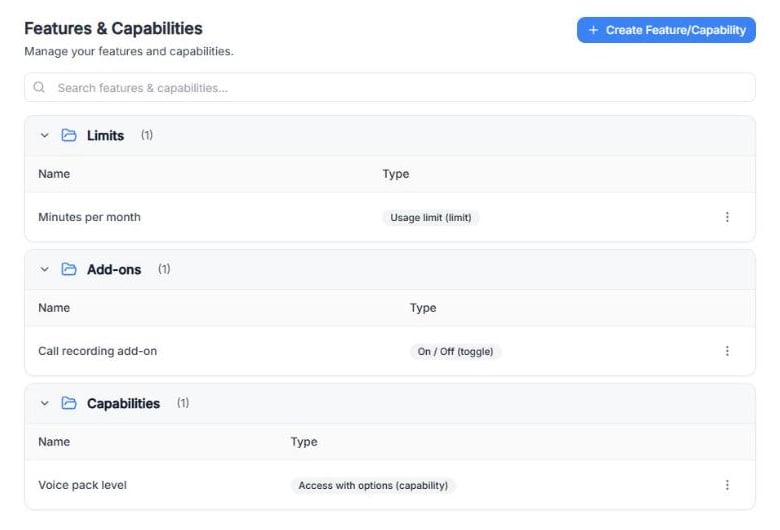
Screenshot: three example features, one of each type, grouped by category.
How features are used in Subscription Plans
When you create a plan, the Review & Confirm step includes Configure Features. That’s where you set a value for each feature you defined here:- On / Off (toggle) features are on or off.
- Usage limit (limit) features take a number.
- Access with options (capability) features take a text value (for example, “Premium voices”).
1
Create a feature (here)
2
Assign a value to that feature inside each plan (in Subscription Plans)
3
The plan’s value becomes what sub-accounts receive when they use that plan
Create a Feature/Capability
Click Create Feature/Capability and fill in these fields. Fields marked with * are required. When you’re done, click Create.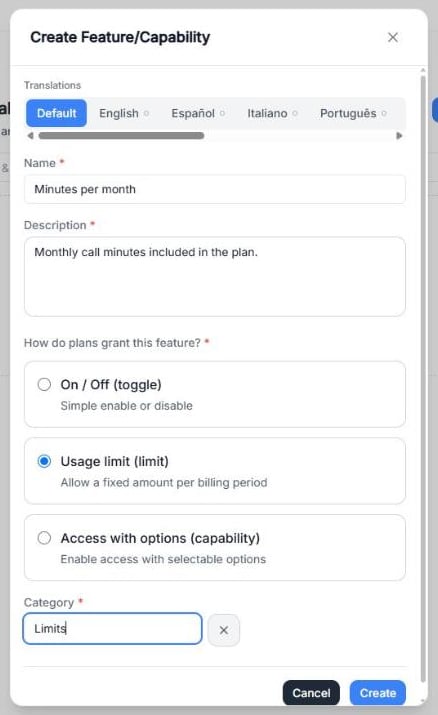
Screenshot: the Create Feature/Capability window filled in for “Minutes per month”.
Name
A short label that will be shown inside plan configuration. Good examples:- Minutes per month
- Call recording add-on
- Voice pack level
- Minutes
- Feature 1
- Access
Description
Required. Write a short sentence so your team knows exactly what this feature controls. Example:- “Monthly call minutes included in the plan.”
Translations
The tabs at the top let you translate the Name and Description for each language of your platform: English, Español, Italiano, Português, हिन्दी, Deutsch, Nederlands, Français and Português (Brasil).- Default holds the main text. Its Name and Description are required.
- The language tabs are optional. Empty fields show the Default text in grey.
- The type and the category are shared by all languages.
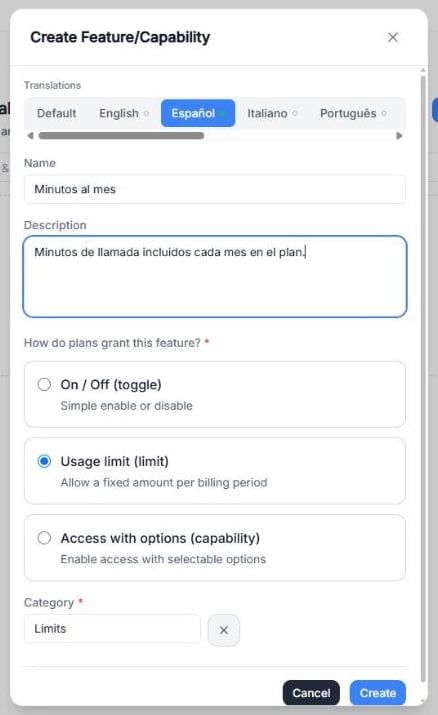
Screenshot: the Español tab with the Spanish name and description of the same feature.
How do plans grant this feature?
This is the most important choice. It defines what kind of value plans will set.On / Off (toggle)
Simple enable or disable. Example:- Feature: Call recording add-on
- Starter plan: Off
- Pro plan: On
- Add-ons like “Call recording”, “Remove branding”, “Priority support” (if your setup includes it)
Usage limit (limit)
Allow a fixed amount per billing period. Example:- Feature: Minutes per month
- Starter plan: 400
- Pro plan: 1,000
- Minutes, seats, number of agents, number of phone numbers, or any “X per month” style rule (depending on what your account supports)
Access with options (capability)
Enable access with selectable options. In each plan, you write the option as text. Example:- Feature: Voice pack level
- Starter plan: Basic voices
- Pro plan: Premium voices
- “Choose one of these packs” / “Choose a level” type entitlements
Category
Required. Categories group your features in the list and keep plan configuration tidy.- Choose an existing category in Select a category.
- Or click + to create a new one, and type it in Enter new category name. Click × to go back to the list.
- Limits (minutes, seats, usage caps)
- Add-ons (recording, branded portal, etc.)
- Capabilities (voice packs, routing modes, integrations—depending on what you offer)
Practical example (realistic setup)
Imagine you sell two tiers to your sub-accounts:- Starter: 400 minutes/month for a fixed price
- Pro: 1,000 minutes/month + call recording
1
Minutes per month → Usage limit (limit), category Limits
Description: “Monthly call minutes included in the plan.”
Description: “Monthly call minutes included in the plan.”
2
Call recording add-on → On / Off (toggle), category Add-ons
Description: “Records the calls handled by the agents.”
Description: “Records the calls handled by the agents.”
- Starter plan:
- Minutes per month = 400
- Call recording add-on = Off
- Pro plan:
- Minutes per month = 1,000
- Call recording add-on = On
Edit an existing Feature/Capability
In the list, click ⋮ on the feature’s row:- Edit opens Edit Feature/Capability, with the same fields: Name, Description, translations, type and Category. Click Update to save.
- Remove deletes the feature. This action cannot be undone.