

What this section is for
UTM Analytics helps you understand which marketing links are bringing users into your white-label workspace. It shows the marketing attribution captured at signup and starting free trial. This is useful when you want to answer questions like:- “Which campaign is actually bringing signups?”
- “Are users coming from ads, partners, or organic sources?”
- “Which landing page converts best?”
Video: the UTM Analytics page → Filters by Source, Campaign and Medium → Clear.
How to read the dashboard
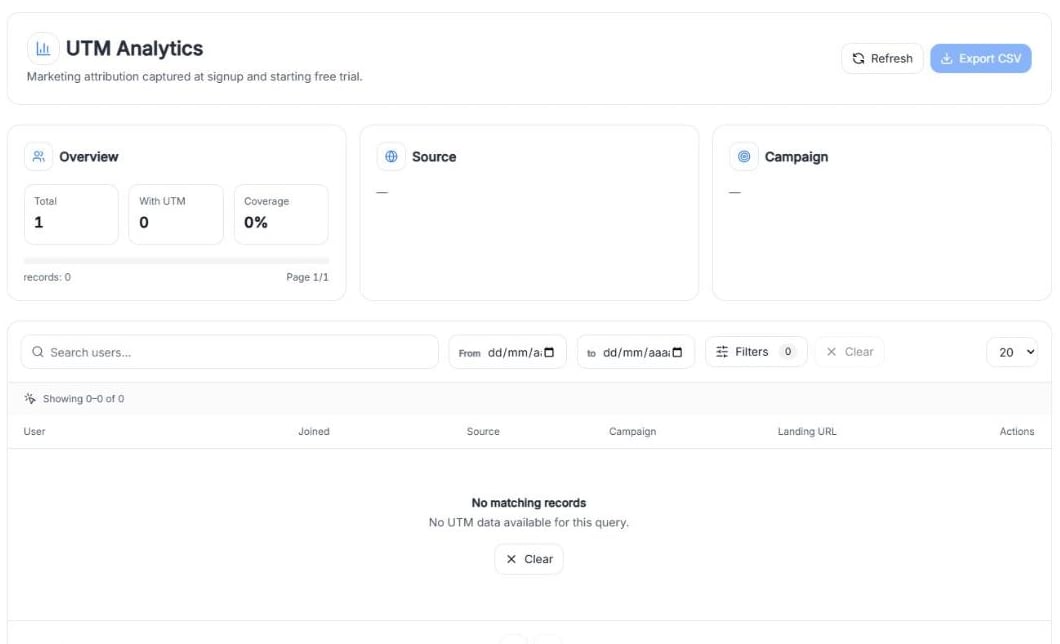
Screenshot: UTM Analytics before any user signs up with a UTM link.
Overview
- Total: users in the current view
- With UTM: how many of them have UTM data captured
- Coverage: the percentage of users in the view that include UTM data
Source and Campaign
These cards break down your users with UTM data by Source and by Campaign. While there’s no data, they show —.Refresh and Export CSV
- Refresh: reload the latest data
- Export CSV: download the list for reporting. It’s available when the list has records.
The table
Each row is a user with UTM data:- User
- Joined: the signup date
- Source, Campaign and Landing URL
- Actions: open all the UTM fields captured for that user
How to search and filter
Search
Use Search users… to find a specific user (for example, by email or name).Date range
Use the From and to date selectors to focus on a period (for example, the last 7 days or this month).Filters
Click Filters to show three more fields: Source, Campaign and Medium. Type a value in any of them to narrow the results. The number next to Filters tells you how many filters are active, and each one appears as a tag under the fields (for example, Source: newsletter). Click the × on a tag to remove that filter.
Screenshot: three active filters, each one shown as a tag you can remove.
Clear
Use Clear to reset all filters and return to the default view.What UTM fields mean (in plain language)
UTM parameters are labels added to a link so you can tell where traffic came from. The table shows the main ones, and Actions shows every field captured for a user:Practical examples
Example 1: Tracking a newsletter
Add UTM parameters to the link in your newsletter, for example:?utm_source=newsletter&utm_medium=email&utm_campaign=spring_offer
Then, in Filters, type newsletter in Source and spring_offer in Campaign to see the users who signed up from that email.
Example 2: Comparing landing pages
Send two versions of a landing page with different campaign names:- Campaign A:
pricing_page_test - Campaign B:
homepage_test
When a user asks “Where did this signup come from?”
A simple checklist:1
Search the user in UTM Analytics
2
Check the user’s Source and Campaign, or click Actions to see all the fields
3
If it’s blank, confirm they used the correct link (with UTM parameters)