

What this section is for
Subscription Plans is where a white-label account defines the plans that will be available to its sub-accounts (your customers). Those sub-accounts can then offer these plans to their own end users—for example, to sell monthly minutes, enable paid add-ons, or control which features are included per tier. After you set up plans here, you typically use them to:- Create clear tiers (Starter, Pro, Enterprise) with different minutes and pricing.
- Decide whether customers can buy extra minutes after they consume their included minutes.
- Mark one plan as Popular so it stands out on your pricing page (if shown in your setup).
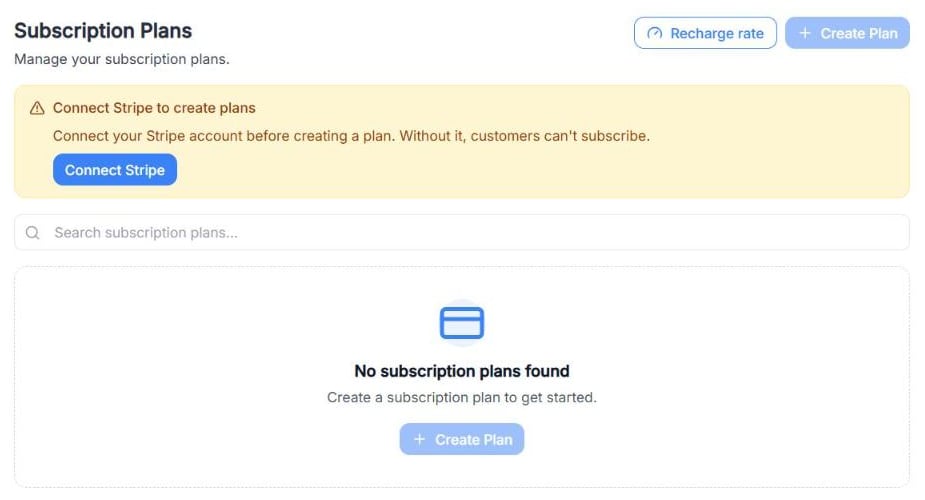
Screenshot: the Subscription Plans page before Stripe is connected. Create Plan stays disabled until you connect it.
Connect Stripe first
To create plans, your White Label needs Stripe connected. Until it is, you’ll see Connect Stripe to create plans and Create Plan stays disabled: without Stripe, your customers can’t subscribe. Click Connect Stripe in the notice, or connect it from Integrations.Recharge rate
Besides plans, your customers can buy minutes of credit from their billing page. Recharge rate sets the price per minute they pay when they recharge.1
Click Recharge rate. The Set recharge rate window opens.
2
In Rate per minute, enter the price per minute in your currency (for example,
0.16).3
Click Update.
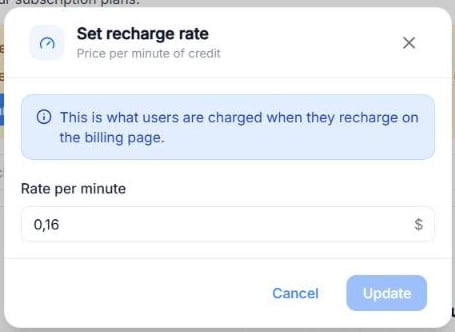
Screenshot: the Set recharge rate window.
Create a new subscription plan
Once Stripe is connected, go to Plans & Billing → Subscription Plans and click Create Plan. A guided flow walks you through the setup step by step.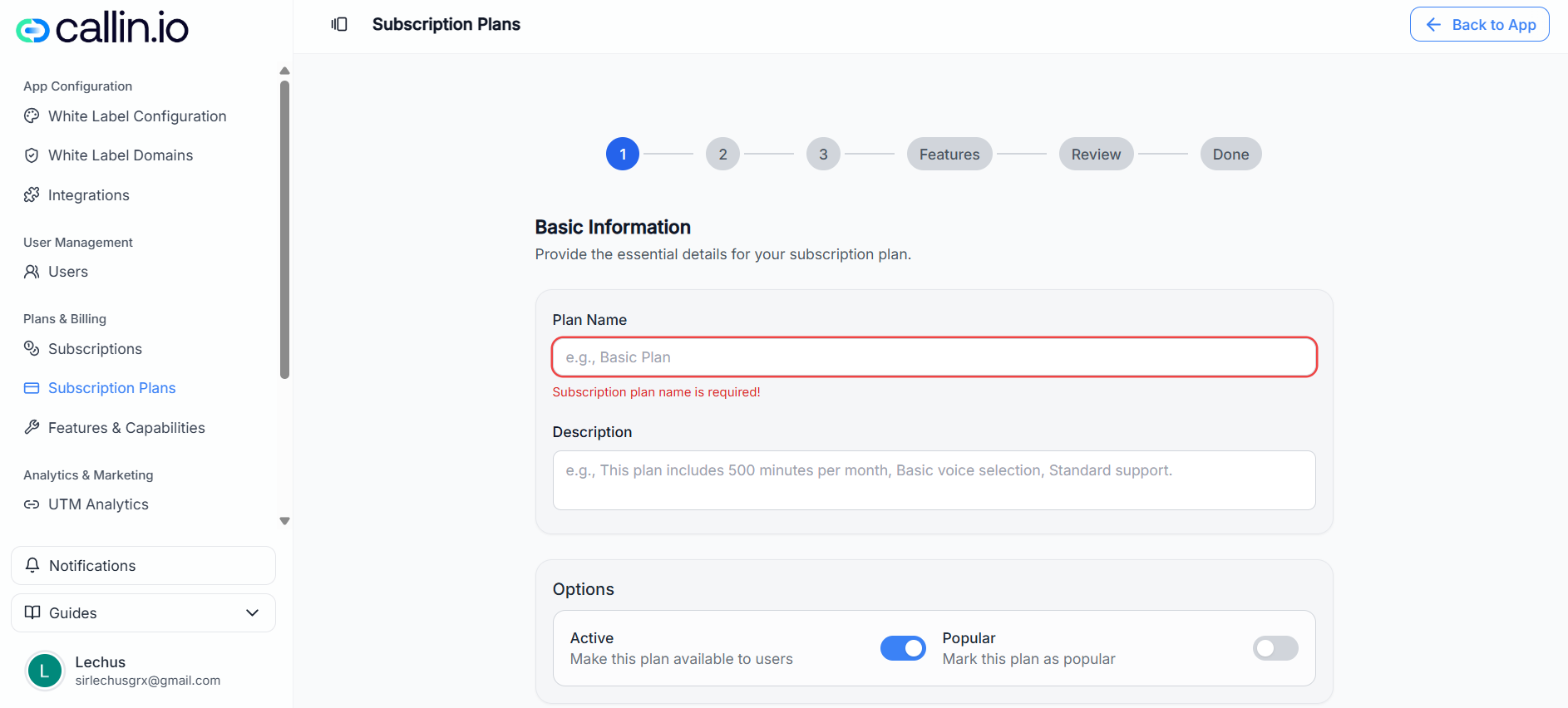
Screenshot: Step 1 of the plan creation wizard, where you name the plan, add a description, and choose whether it’s Active and/or Popular.
Step 1: Basic information
Fill in the essentials:- Plan Name: Required. This is what your customers will recognize (e.g., Starter, Growth, Pro).
- Description: Optional but strongly recommended. Explain what’s included in plain language.
- Active: When enabled, the plan is available to users.
- Popular: When enabled, this plan can be highlighted as a recommended option.
- Plan Name: Starter
- Description: “Includes 400 minutes per month. Great for small teams who want reliable call coverage and a predictable monthly price.”
- Active: On
- Popular: On (only for the plan you want most people to choose)
Step 2: Choose a plan type
Select how you want to bill:- Monthly Subscription: Recurring monthly billing with a set number of minutes and a fixed monthly price.
- One-Time Purchase: A single payment for a fixed amount of minutes.
- Pay as You Go: Pay per minute with flexible usage.
Step 3: Pricing & minutes
The next screen depends on the plan type. For a Monthly Subscription, you typically configure:- Available Minutes per Month: How many minutes are included every month (e.g., 400).
- Price: The monthly price users pay (e.g., $300/month).
- Additional Minutes: Allow customers to purchase extra minutes beyond the included monthly minutes.
- If enabled, set the Rate per Additional Minute (e.g., $0.30/min).
- Annual Billing: Offer yearly billing with a discount (when available in your setup).
- Included minutes: 400 minutes/month
- Monthly price: $300/month
- Additional minutes: Enabled
- Additional minute rate: $0.30/min
- A customer pays $300 each month and gets 400 minutes.
- If they use 430 minutes, the extra 30 minutes are billed at $0.30/min (30 × 0.30 = $9).
Step 4: Configure features
On the Features step, you assign values to the features that exist in your platform setup (often defined under Features & Capabilities). Depending on the feature, you might set:- A toggle (on/off)
- A numeric limit
- A text value
- Feature: “Starter minutes”
- Value: 400
Step 5: Review & create
Before creating the plan, you’ll see a summary of what you configured:- Basic information (name, description, status)
- Plan type
- Pricing & minutes
- Features
Edit an existing plan
To edit a plan, go to the plans list, open the three-dot menu, and choose Edit Plan. Inside the editor you typically see tabs such as:- Basic Info: Update name, description, and toggles like Active/Popular.
- Features: Adjust feature values for this plan.
- Pricing & Minutes: Update included minutes, price, and additional-minute settings.
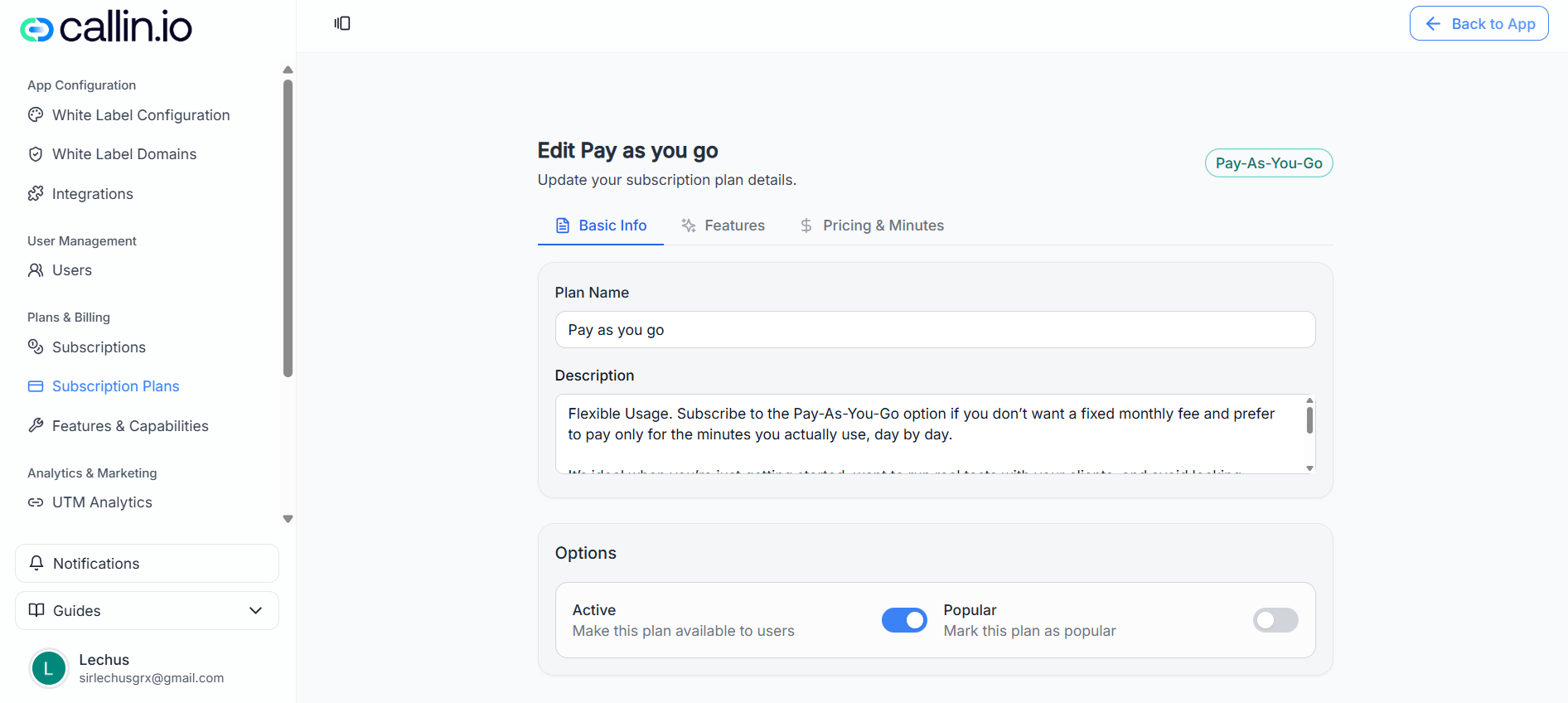
Screenshot: editing a plan’s pricing and minutes, including the notice that price changes create a new Stripe price and won’t affect existing subscribers.
Manage plan lifecycle (Copy ID, deactivate, and search)
From the plan list you can:- Copy Plan ID: Useful for support, troubleshooting, or matching the plan inside other areas of the platform.
- Deactivate Plan: Stops offering the plan to new users.
- Search: use Search subscription plans… to find a plan by name.