

What this section is for
Guides lets you add your own documentation links for your customers inside Callin. This is useful if you want your sub-accounts to open help resources directly from the app, such as:- A knowledge base (for example, Mintlify)
- A Notion workspace
- A help center on your website
- A Google Doc or internal wiki
Video: the empty Guides page → Add New → the guide in the list → the row menu with Edit and Delete.
How it works
Each item you add here is a link that appears to your sub-accounts while it’s active. When someone needs help, they click the guide and are taken to the URL you provided. A guide includes:- A Title: it appears in the sidebar navigation menu
- A Description: what the guide is about
- A URL: where the user is sent
- An Active toggle: to show or hide it
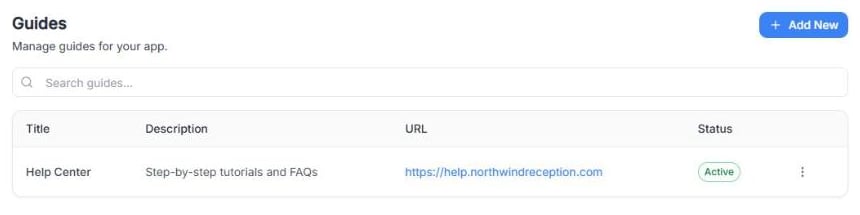
Screenshot: the Guides list with an example guide.
Add a new guide link
1
Click Add New.
2
Fill in the fields (all three are required):
- Title: the name users will recognize (for example, “Help Center”). Maximum 50 characters.
- Description: a short explanation (for example, “Step-by-step tutorials and FAQs”).
- URL: the full link users should open (for example, your Mintlify site or your own support site).
3
Leave Active on if you want it visible to sub-accounts right away. It’s on by default.
4
Click Save.
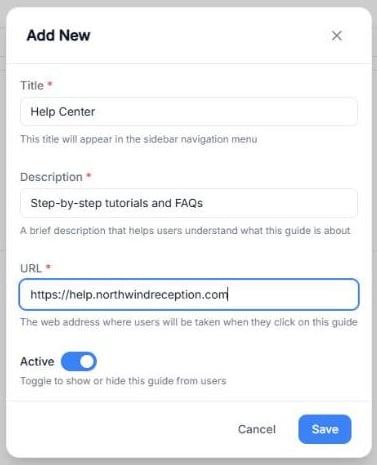
Screenshot: the Add New window filled in for an example help center.
Practical example
If your documentation is hosted on Mintlify, you could create:- Title: Documentation
- Description: “Guides for setup, billing, and best practices.”
- URL: “Your Mintlify documentation URL”
- Active: On
Manage existing guides
The list shows each guide’s Title, Description, URL and Status. From there you can:- Search guides… to find a guide quickly.
- Click ⋮ → Edit to update its title, description or URL, or to turn Active off and hide it.
- Click ⋮ → Delete to remove it.