

Actions
Actions is the place where you connect Callin to other platforms so your AI Agents can schedule, sync customer data, trigger automations, and send updates—without doing everything manually. In the app, the page is called Integrations. Open Actions in the Console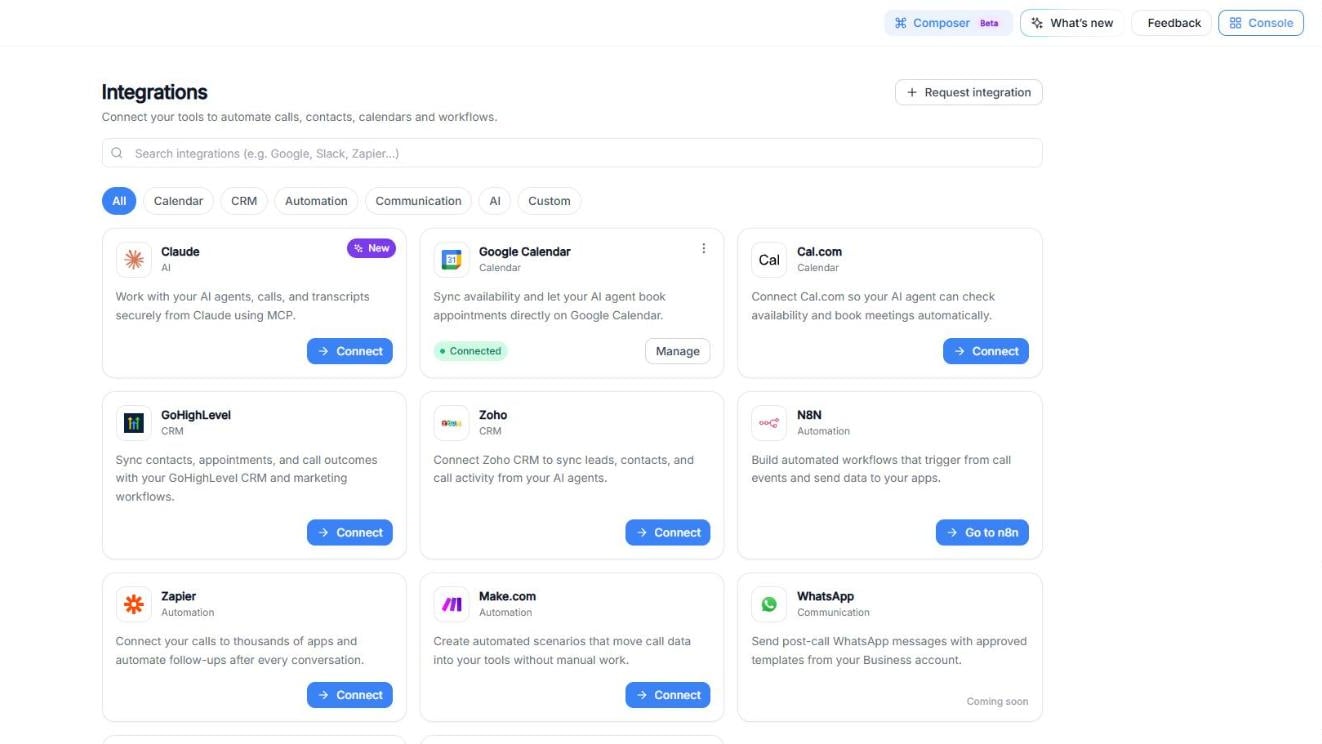
Screenshot: The Integrations page, where you connect external platforms to Callin. Each card shows its category, whether it’s connected and the button to use.
Where to find it
1
Open your Callin Console.
2
In the left menu, go to Integrations → Actions.
- Search integrations: type a name (for example, “Google”, “Slack” or “Zapier”).
- Category filters: All, Calendar, CRM, Automation, Communication, AI and Custom.
- Request integration: ask for a platform that isn’t on the list yet.
Video: the Integrations page, the details of a connected integration and the Calendar, CRM, Automation and Communication filters.
How connecting works
Each integration card shows its category, a short description and a status or button:- Connect → The integration isn’t connected yet. Click it to start.
- Connected with Manage → The integration is already connected (example: Google Calendar).
- Coming soon → The integration is listed but not available to connect yet (example: WhatsApp and Slack).
- New → A recently added integration (example: Claude).
- Some platforms use a different button label (example: Go to n8n).
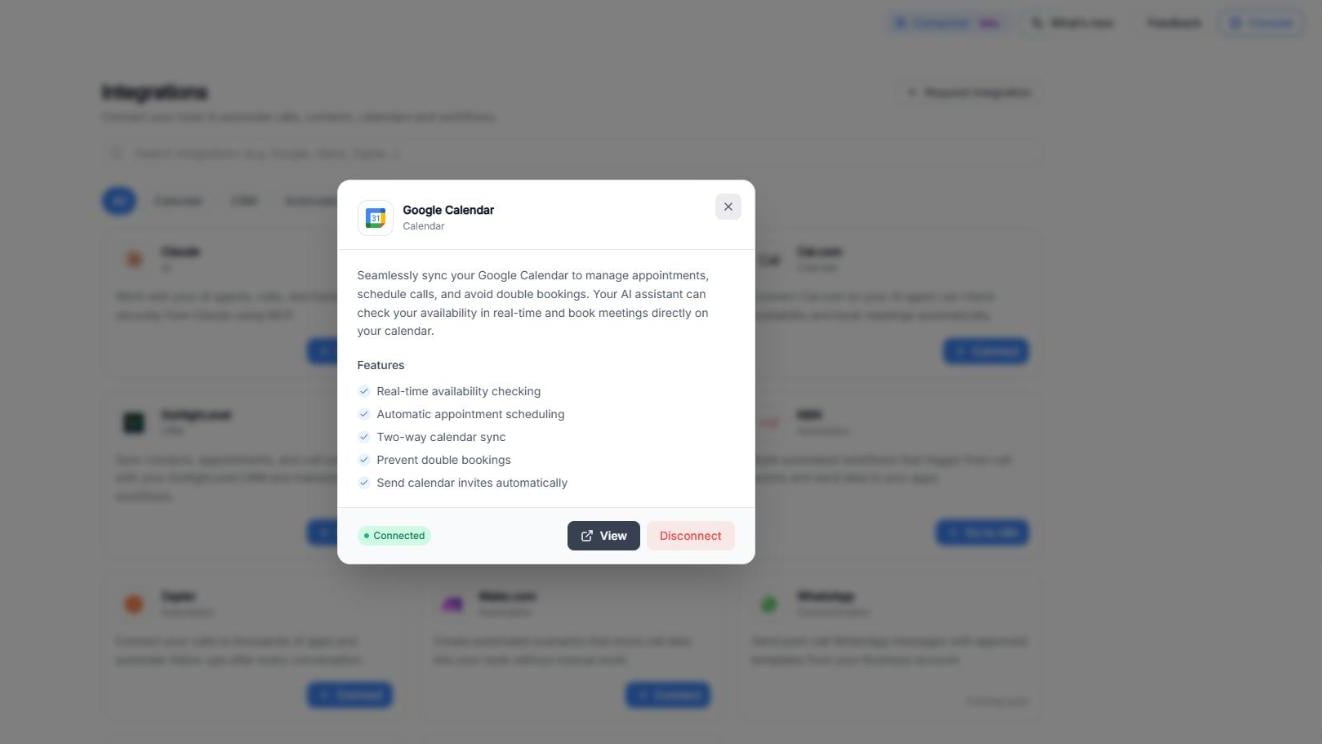
Screenshot: The details of a connected integration.
1
Click the integration card’s button (Connect, Manage or Go to n8n).
2
Follow the setup steps. Depending on the platform, Callin opens the platform’s sign-in page in a new tab (for example, GoHighLevel or Zapier) or a setup page inside Callin (for example, Claude, Cal.com or Custom Integration).
3
Return to Callin and confirm the card status updates.
Available integrations
Below is what each available platform is typically used for and how you connect it from the Actions page.Video: the Claude, Cal.com and Custom Integration setup pages.
Claude (New)
What it’s forWork with your AI agents, calls and transcripts from Claude, using MCP. Claude can only access the Callin data you authorize. What you can do
- View your AI agents
- Review recent calls
- Access call transcripts
- Summarize conversations
- Search Callin calls using natural language
1
On the Claude card, click Connect. The Claude × Callin page opens.
2
Click Connect Claude to open Claude.
3
In Claude, open Settings → Connectors and add a custom connector.
4
Paste the Callin connector URL shown on the page (use Copy URL).
5
Sign in to Callin if asked, then click Allow access on the consent screen.
- “Show my latest 10 calls.”
- “Summarize my latest customer call.”
- “Find calls handled by my sales agent this week.”
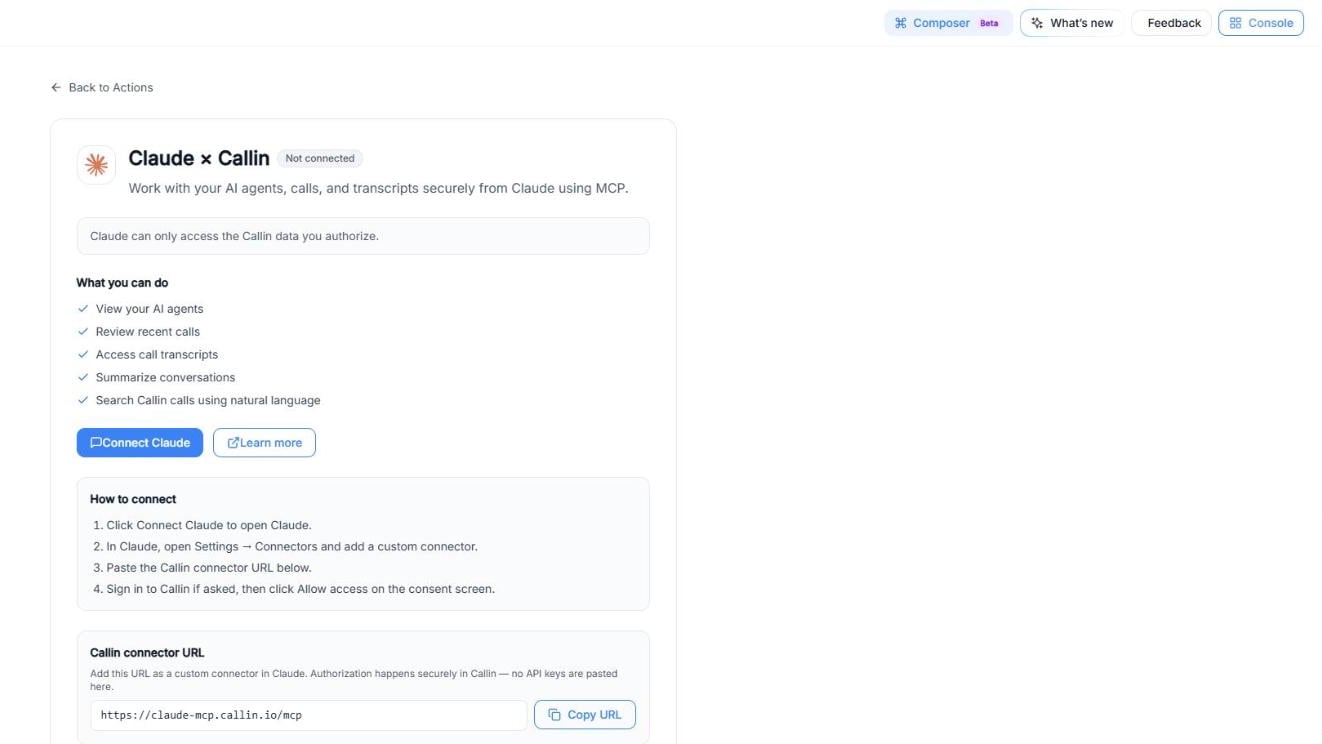
Screenshot: The Claude × Callin page.
Google Calendar
What it’s forSync availability and let your AI agent book appointments directly on Google Calendar, the calendar your team already uses. How to connect in Callin
- If it’s not connected, click Connect on the Google Calendar card and complete the Google authorization steps.
- If it’s already connected, you’ll see Connected and Manage. Click the card to see its details, with:
- View to review the connection
- Disconnect to remove the connection
- A scheduling agent can check availability in real time and book confirmed appointments in your calendar (for example: “Demo with Alex Rivera — Tue 3:30 PM”).
- An agent can help reduce no-shows by using calendar details as the “source of truth” for upcoming meetings (for example, confirming: “You’re booked for Wednesday at 10:00 AM”).
Cal.com
What it’s forCal.com is an appointment scheduling platform. Connect it so your AI agent can check availability and book meetings automatically. How to connect in Callin
1
Find Cal.com and click Connect.
2
On the Cal.com Integration page, paste your API key in Connect with API Key. You’ll find it in your Cal.com settings (there’s a link on the page).
3
Click Connect, then return to Actions and confirm the card shows Connected.
- A booking agent can guide a customer to the right appointment type (for example: “15-minute intro call” vs. “30-minute onboarding”).
- If your team uses Cal.com scheduling links, an agent can help route customers to the right option based on intent (sales, support, onboarding).
GoHighLevel
What it’s forGoHighLevel is a CRM platform. Connecting it syncs contacts, appointments and call outcomes with your GoHighLevel CRM and marketing workflows. How to connect in Callin
1
On the GoHighLevel card, click Connect.
2
A new tab opens on GoHighLevel: choose your location and complete the authorization steps.
3
Return to Callin and confirm the integration status updates.
- After a call, an agent can help ensure lead details are ready to be used in your CRM follow-ups (for example: name, interest, and next-step notes).
- A sales agent can use what it learned during a call to support better handoffs (for example: “Interested in the Pro plan, wants pricing by email”).
Zoho
What it’s forZoho is another CRM option. Connect Zoho CRM to sync leads, contacts and call activity from your AI agents. How to connect in Callin
1
On the Zoho card, click Connect.
2
Follow the authorization steps.
3
Confirm the card shows Connected.
- A support agent can help capture the outcome of a customer call so your team can follow up in the CRM.
- An agent can support consistent data entry by prompting for missing details during a conversation (for example: company size, preferred contact method).
n8n
What it’s forn8n is a workflow automation platform. Build automated workflows that trigger from call events and send data to your apps. How to connect in Callin
- On the N8N card, click Go to n8n.
- Follow the setup instructions to create your workflow and connect it back to Callin (steps can vary based on how your n8n is hosted). See n8n.
- After an agent finishes a call, you can trigger an automation that notifies a team channel and creates a task for follow-up.
- You can route call outcomes into different paths (for example: “booked demo” → notify sales, “needs support” → create a support ticket).
Zapier
What it’s forZapier connects your calls to thousands of apps and automates follow-ups after every conversation, without custom development. How to connect in Callin
1
On the Zapier card, click Connect. A new tab opens on Zapier.
2
Sign in to Zapier and complete the connection steps.
3
Build “if this, then that” workflows in Zapier based on your needs. See Zapier.
- When an agent collects a new lead, trigger a follow-up email sequence in your email tool.
- When a call is completed, automatically send a summary to a spreadsheet or a project tracker for visibility.
Make.com
What it’s forMake (formerly Integromat) lets you create automated scenarios that move call data into your tools without manual work. How to connect in Callin
1
On the Make.com card, click Connect.
2
Follow the connection steps.
3
Build scenarios in Make to match your workflow. See Make.
- If an agent qualifies a lead as “high intent,” trigger a multi-step workflow (for example: alert a salesperson, create a deal, schedule a task).
- Send structured updates to internal tools your team already uses.
WhatsApp (Coming soon)
What it’s forSend post-call WhatsApp messages with approved templates from your WhatsApp Business account. Availability
WhatsApp shows Coming soon: it’s visible in Actions but not available to connect yet.
Slack (Coming soon)
What it’s forReceive call notifications and transcripts in Slack so your whole team stays informed. Availability
Slack shows Coming soon: it’s visible in Actions but not available to connect yet. Example uses with AI Agents (once available)
- Notify a channel when an agent books a meeting (for example: “New demo booked: Thu 2:00 PM”).
- Alert support when a customer requests help during a call.
Custom Integration
What it’s forBuild your own integration with the Callin API to send and receive call data. It’s for teams that want to connect Callin to their own systems. How to connect in Callin
1
Click Connect on the Custom Integration card. The Receive Data (Make Call) page opens, with two tabs: AI Workflows and Logs.
2
Click Create Workflow and fill in:
- Workflow Name
- AI Agent: the agent that will make the call.
- Mandatory Fields: the data your request must include. By default: name, phone and email, each with a definition. Use Add Entity to add more (for example,
firstName,appointmentDateorisInterested).
3
Click Save. Each workflow gets its own unique Webhook URL: copy it and use it to send data from your external services. Make sure to include the mandatory fields in your request.
4
Check the Logs tab to see the requests received.
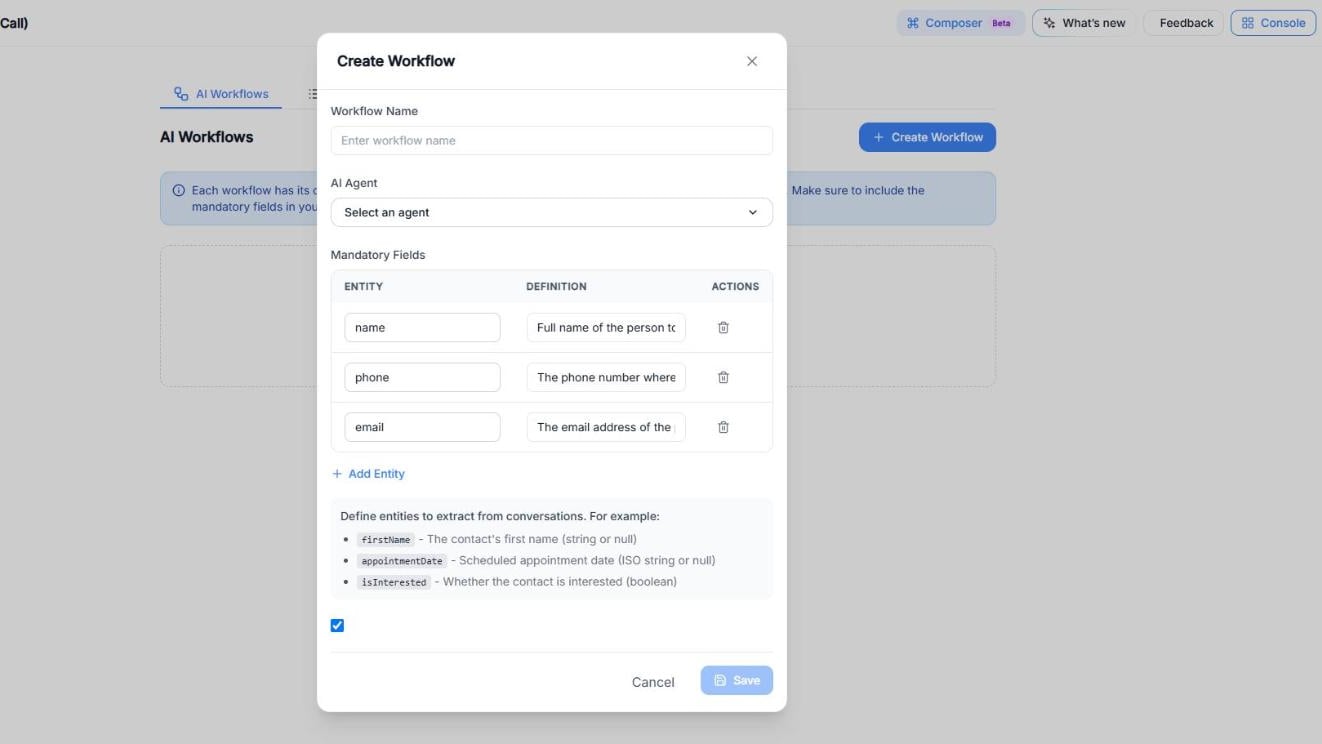
Screenshot: Creating a workflow in Custom Integration.
- When a new lead fills in a form on your website, send it to the workflow’s Webhook URL so the agent calls them right away.
- Trigger calls from your own backend or CRM whenever a contact reaches a specific stage.
Troubleshooting
The integration doesn’t show “Connected”
- Refresh the page and check again.
- Try disconnecting and reconnecting (if the option exists).
- Confirm you signed in with the correct account on the provider side.
You connected the wrong account
- Use Disconnect (on the card’s ⋮ menu or in its details), then reconnect and select the correct account during authorization.