

Connect your existing number to an agent
If your business already has a phone number and you want an AI agent to answer calls on that line, you do not need to rebuild your entire phone setup to get started. In Callin, you can do it in three different ways depending on the level of integration you need and the phone infrastructure you already have. You can connect your existing number through:- Call forwarding, if you want to keep your current line and redirect calls to the agent’s number.
- Porting, if you want to keep the same number and request its migration through the flow compatible with Callin.
- BYOC (SIP Trunk), if you already work with a SIP carrier, PBX, or phone system and want to connect that infrastructure to the platform.
Where each option is managed
Everything related to buying numbers, starting a porting request, and managing numbers is handled from the Numbers section. Connecting your own carrier, SIP Trunks, or external providers is handled from the BYOC section. If your goal is to use an existing number with an agent, you will usually start in Numbers and move to BYOC if you need a more advanced telephony integration.Option 1: Keep your current number and use call forwarding
This is the fastest and simplest way to get started. With this option, your main number stays with your current phone provider. It is not transferred and it is not migrated. Instead, you connect a number in Callin, assign it to your agent, and then enable call forwarding from your usual business number to that agent number. When someone calls your main line, the call is redirected to the number connected to the agent, and the agent answers it.How it works
First, you need an active number in Numbers. That will be the number used by the agent. Then you assign that number to the correct agent. Once that is done, you enable forwarding from your original number to the agent number. From that point on, your customers can keep calling the same number they already know, while the agent handles the call.What you need to know
Call forwarding is not enabled inside Callin. Callin receives the call on the number assigned to the agent, but enabling the forwarding itself depends on the customer and their phone carrier. This means the user must configure it from their phone, through their PBX, or with their telecom provider depending on how their current line is managed.When this option makes sense
This option is ideal if you want to move quickly, keep your public business number unchanged, and avoid a more technical process or a number migration. It is also a very practical solution if you want to start using the agent in production without changing your main telephony structure yet.Practical example
A clinic has used the same landline number for years. That number appears on its website, in Google listings, and across all its business communications. Instead of changing it, the clinic buys a number in Callin through Numbers, assigns it to its agent, and enables forwarding from the main line through its phone carrier. Patients keep calling the same number, but the agent is the one answering.Advantages
- It is the fastest option to activate.
- It lets you keep the number your customers already know.
- It does not require moving your number to a different setup.
- It is easy to understand and easy to implement.
Important considerations
Forwarding depends on your carrier. Some providers allow it from a customer portal or directly from the phone, while others require a specific request. Depending on your plan, there may also be charges associated with forwarded calls.Important: Call forwarding is configured with your phone carrier or internal phone system, not inside Callin.
Option 2: Port your number
Porting allows you to keep your current number and request that it continue operating through the flow compatible with Callin, instead of relying on permanent forwarding. This option is a strong fit when you want to keep the same customer-facing number but prefer a more direct integration.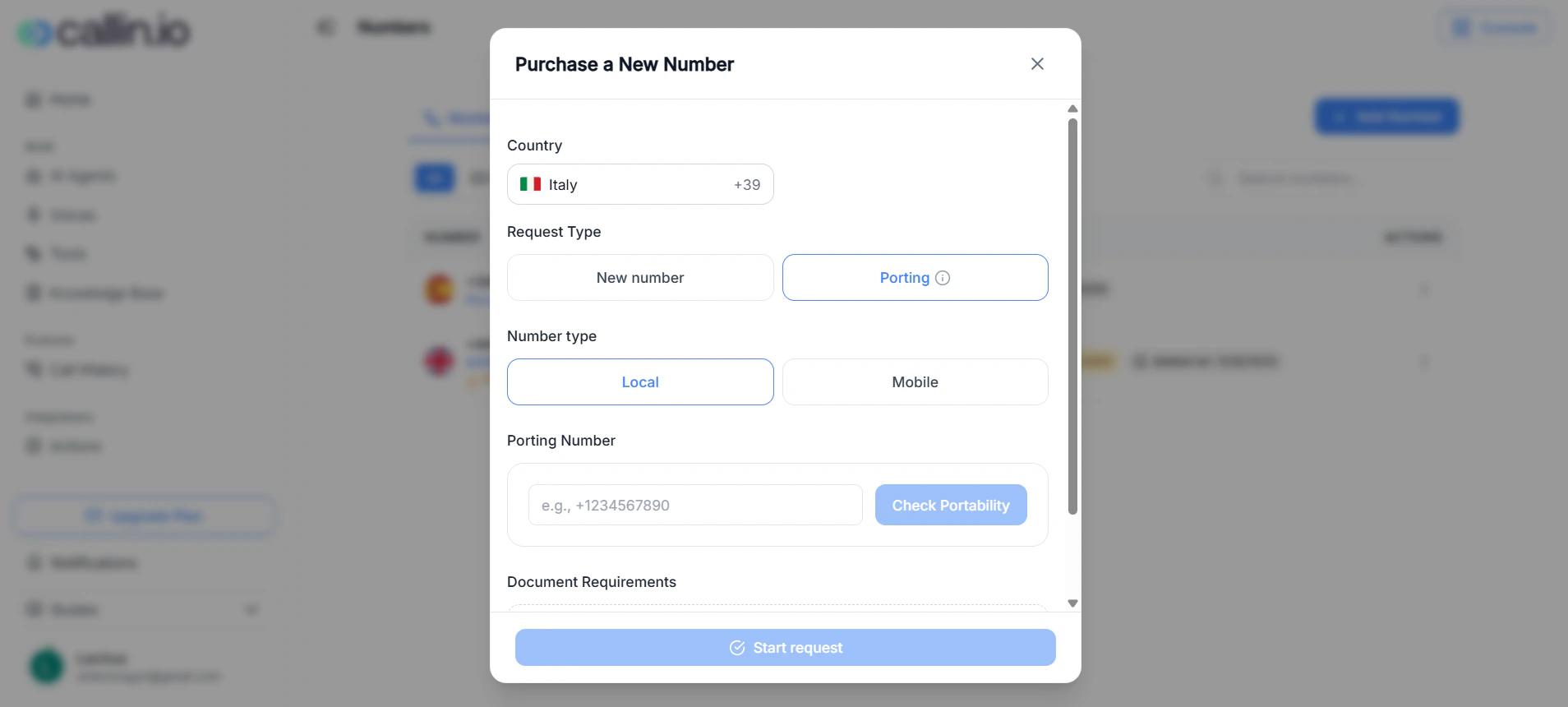
Screenshot: the porting request flow in Numbers, where the user enters an existing phone number and checks whether it is eligible to continue.
Where it starts
A porting request starts from Numbers. Inside the request flow, you can choose between requesting a new number or starting a porting request. To continue through this option, you select porting, choose the country, select the available number type, and enter the number you want to port.How it works
Once the number is entered, the platform performs a portability check to verify whether that number can continue through the process. This validation confirms whether coverage or availability exists for that request. Not all numbers can be ported in all countries, and not all number types follow the same rules.What happens if the number is not compatible
If the number cannot continue, the platform will clearly indicate that coverage is not available for that phone number. That does not necessarily mean the number is invalid. It means that, in that case, the number cannot continue through the available porting flow.What happens if the number is compatible
If the number is eligible, the request can continue. The next steps may vary depending on the country, the number type, and the conditions that apply to that case.When this option makes sense
Porting is a good choice when you want to keep using your current number but do not want to rely on external forwarding as a long-term solution. It is also the natural path when your main number is already part of your brand and you want to integrate it more directly into your operating model.Practical example
A professional firm has used the same business number for years. Its clients know it, and changing it would create friction. In that case, porting allows the firm to keep that number as its main point of contact while moving toward a more integrated setup.Advantages
- It allows you to keep the number your business already uses.
- It avoids depending on external forwarding as a permanent solution.
- It offers a more natural continuity for both customers and internal teams.
Important considerations
Porting depends on eligibility. Availability may vary depending on the country, the number type, and the coverage associated with the number. That is why the process always begins with a check from Numbers.Tip: If your number does not pass the availability check, call forwarding may still be the fastest way to start using the agent.
Option 3: Connect your infrastructure with BYOC (SIP Trunk)
BYOC stands for Bring Your Own Carrier. This option allows you to connect your own telephony provider to Callin so the agent can operate on top of your existing infrastructure. It is the most advanced option and is designed for businesses that already use VoIP, a PBX, a phone system, or their own SIP provider.Where it is configured
All custom carrier setup is managed from BYOC. From this section, you can connect Telnyx or configure a generic SIP Trunk with another provider.When it makes sense
BYOC is the best choice when your company already has a business telephony setup and does not want to duplicate systems or rebuild its voice architecture. It is also recommended if you need more control over how calls enter and leave the platform, or if your technical team already works with SIP trunks and its own credentials.BYOC with Telnyx
If you already use Telnyx, you can connect it from BYOC using an API key. After the account is connected, the platform retrieves your active numbers, adds them to your workspace, and prepares the connection required for inbound and outbound calls.When to choose this option
This is the best path if you already have active numbers in Telnyx and want to integrate them with Callin in a more guided and faster way.Practical example
A company already uses Telnyx for its business telephony. Instead of buying new numbers, it connects Telnyx from BYOC, imports its numbers, and continues working with the number inventory it already has in production.BYOC with another SIP provider
If your provider is not Telnyx, you can use the generic setup available in BYOC. This option allows you to connect a SIP Trunk from another provider and define how inbound and outbound calls will be handled.What is defined in this setup
First, you define the basic trunk details and the number you want to use. Then you configure the inbound side, which determines where incoming calls should be delivered. Finally, you configure the outbound side, which defines which server and credentials will be used for outbound calling.In simple terms
The inbound part determines where your system receives calls. The outbound part determines how calls leave the platform. This separation is common in business telephony environments and gives you more operational control.When to use this option
This is the best path when your company already works with a different SIP provider, when you have your own PBX, or when you need to maintain an existing corporate telephony architecture.Practical example
An international company works with a SIP provider that already manages its numbers, routing, and internal rules. Instead of rebuilding its entire phone environment, it connects that trunk from BYOC and allows the agent to operate within that existing setup.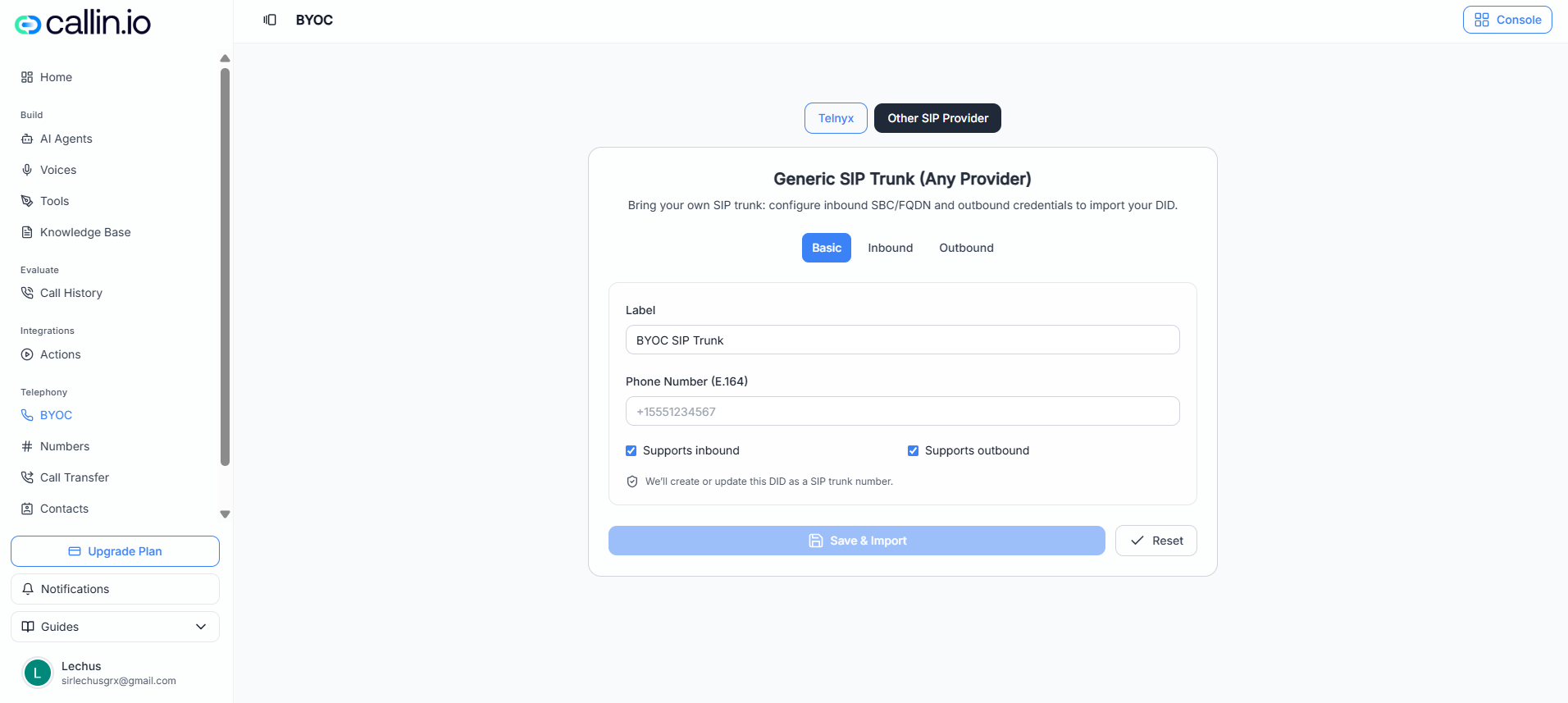
Screenshot: the BYOC section, where users connect their existing carrier, import numbers, or configure a SIP Trunk for inbound and outbound calls.
Important: BYOC is recommended for businesses that already have a telephony team, SIP provider, or existing PBX setup.
Assign the number to the agent
Having the number in your workspace is not the last step. For the agent to use it, the number must be assigned to the correct agent. This assignment is part of the actual activation of the line. If the number exists in your account but has not been assigned, it is not yet ready to work as the agent’s active phone line.Where it is managed
The number itself is managed from Numbers, but assignment is also part of the agent’s operating setup.Why it matters
A number can be correctly purchased, connected, or imported and still not behave as expected if it is not linked to the right agent.Practical example
If your company has one agent for support and another for sales, you must make sure each number is assigned to the correct one. This avoids a situation where a line meant for sales is answered by the support flow, or the other way around.Common mistake: Importing or buying a number is not enough on its own. The number still needs to be assigned to the correct agent.
Which option should you choose
If you want a simple recommendation:- If you want to get started quickly without changing your main number, use call forwarding.
- If you want to keep that number inside a more integrated operating model, use porting when it is available.
- If your company already has its own telephony infrastructure, use BYOC.