

What the Knowledge Base is for
The Knowledge Base is where you store information that your AI agents can use during conversations—so they don’t have to rely only on the main prompt. It’s best for large or detailed content, like manuals, FAQs or policies, that doesn’t fit in the prompt. Typical use cases:- Answering questions about your business (services, pricing, policies, hours).
- Guiding users through processes (refund steps, appointment prep, onboarding).
- Keeping responses consistent across multiple agents.
- Files: documents you upload (PDF, DOC, DOCX, TXT), organized into groups.
- Web: web pages (URLs) the agent learns from, which you can organize into folders.
How it connects to AI agents
You don’t add the content directly inside an agent. Instead, you:1
Build your Knowledge Base content here (Files or Web URLs).
2
Then, in the agent editor, open the Knowledge Base tab and add the documents you want that agent to use.
Files Knowledge Base
The Files tab is for uploading documents your agent should learn from (for example: a PDF policy, a DOCX script, or a TXT FAQ). Files are organized into groups, so you can keep related documents together. Next to Create Knowledge base you can switch between two views: a list of all your files, or your groups shown as folders. Use Search files… to find a document.Video: Files tab → Create Knowledge base → group name, and then the agent’s Knowledge Base tab → Add Document.
Create a file group and upload documents
1
Open the Files tab.
2
Click Create Knowledge base.
3
In the Upload Files window, enter a Group Name (required). The files you upload will be grouped together under this name.
4
Add your documents:
- Drag and drop files into the upload area, or
- Click Select Files to browse.
5
Click Upload Files to finish.
- PDF, DOC, DOCX, TXT
- Max 5MB per file
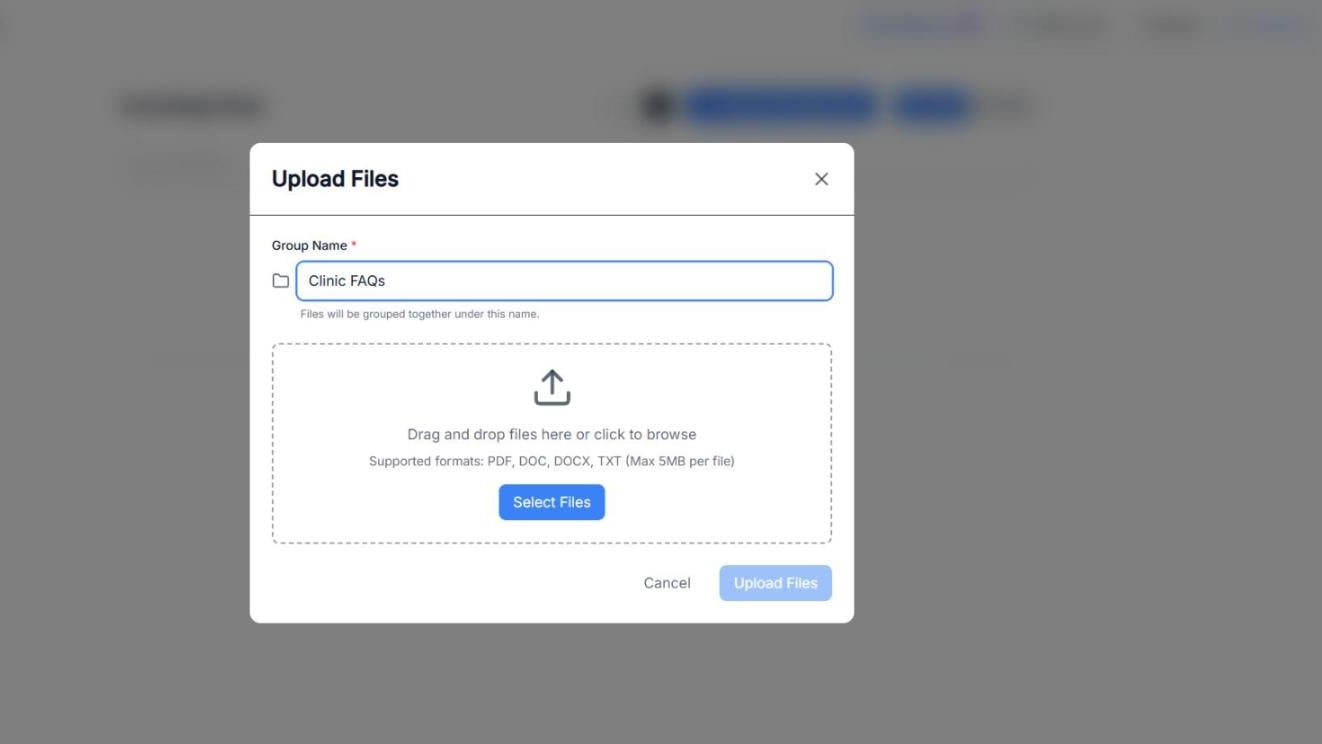
Screenshot: The Upload Files window, where you name the group and add your documents.
Manage and update files in a group
After a group exists, you can open it to manage what’s inside:- Add more documents (for example, using Add New Files).
- See a list of Current Files already included.
- Remove files you no longer want the agent to reference.
Web URLs Knowledge Base
The Web tab is for teaching your agent from web pages. This is useful when your source of truth lives on your website (help center, docs, policy pages, landing pages). The list shows every URL with its Name, its address and when it was Last Updated. Use Search Knowledge Base… to find one.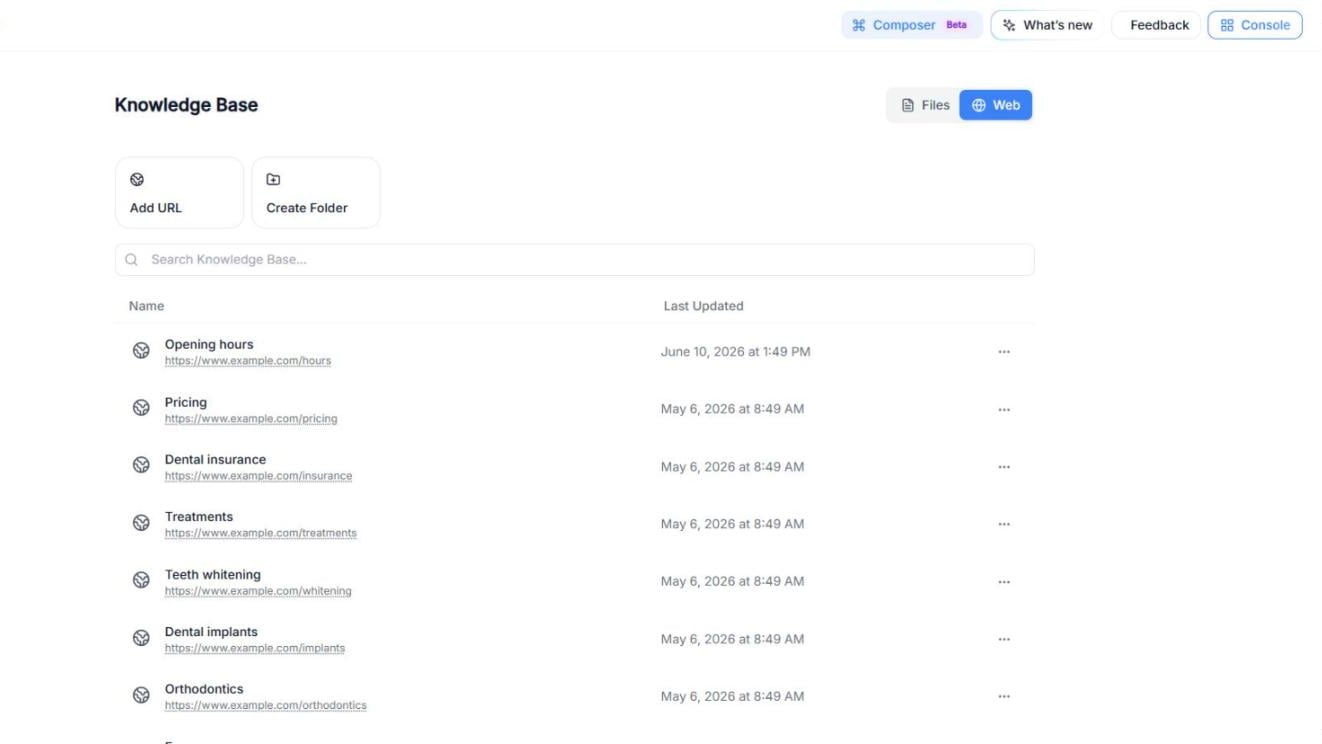
Screenshot: The Knowledge Base in Web mode, with Add URL, Create Folder and the list of URLs.
Add a URL
1
Open the Web tab.
2
Click Add URL.
3
Fill in:
- Parent Folder: where to save it. By default, Knowledge Base (top level).
- Title (required): a clear name for this page (for example, “Pricing page”).
- URL (required): the link to the web page.
4
(Optional) Turn on Auto Refresh so Callin reads the page again regularly. Then choose the Interval and the Interval Unit (Days or Hours). By default, every 7 days.
5
Click Add URL to save it.
Video: Add URL → title and URL → Auto Refresh with its interval → Create Folder → View Details of a URL.
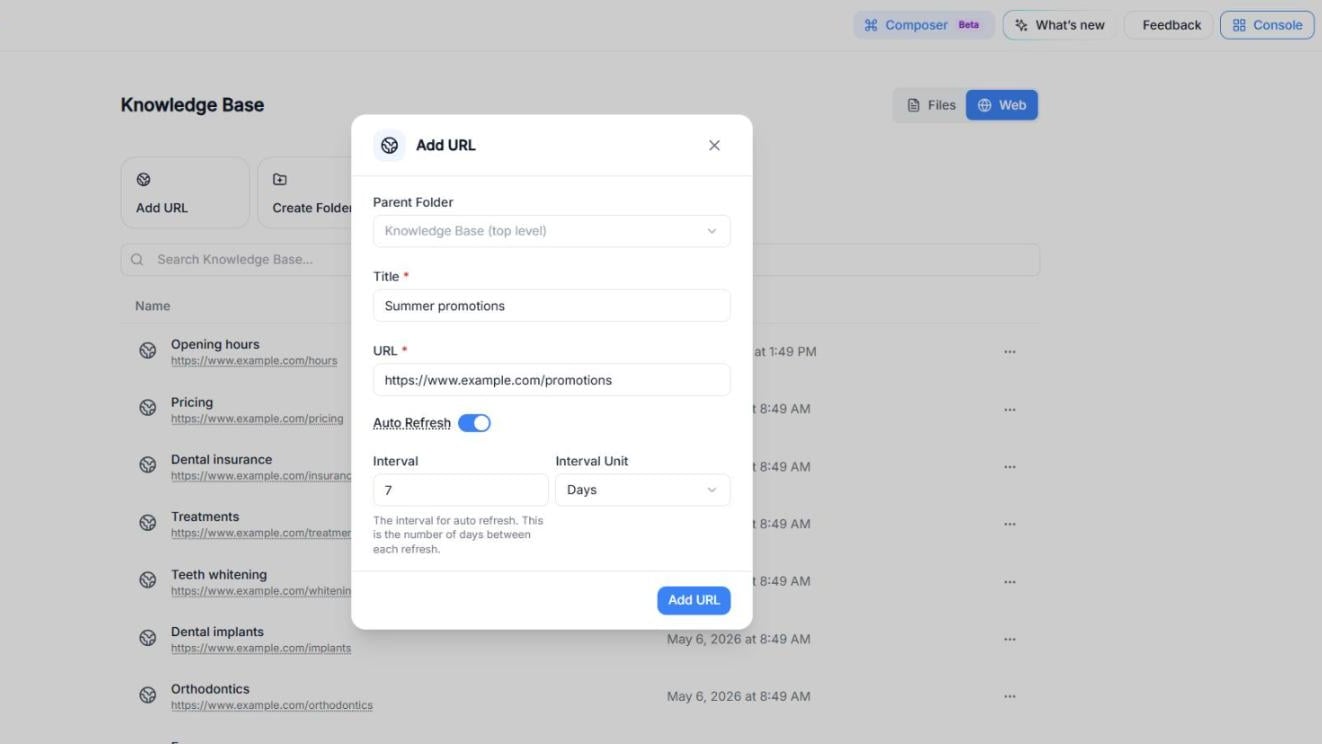
Screenshot: The Add URL window with Auto Refresh turned on.
Organize URLs in folders
To keep related pages together (for example, all the pages of your website), click Create Folder:1
Choose the Parent Folder (or leave Knowledge Base (top level)).
2
Enter the Folder Name (required).
3
(Optional) Turn on Auto Refresh to refresh all the URLs in this folder at your chosen interval.
4
Click Create Folder.
View, refresh or delete a URL
Click ⋯ on the right of a URL to open its menu:- View Details: opens a panel with the Document ID, Last updated, Document size, Source URL and Auto Refresh, and on the right the URL Content (the text your agent actually reads from that page). Click Refresh Content to read the page again now.
- Copy ID: copies the document ID.
- Delete: removes the URL from the Knowledge Base.
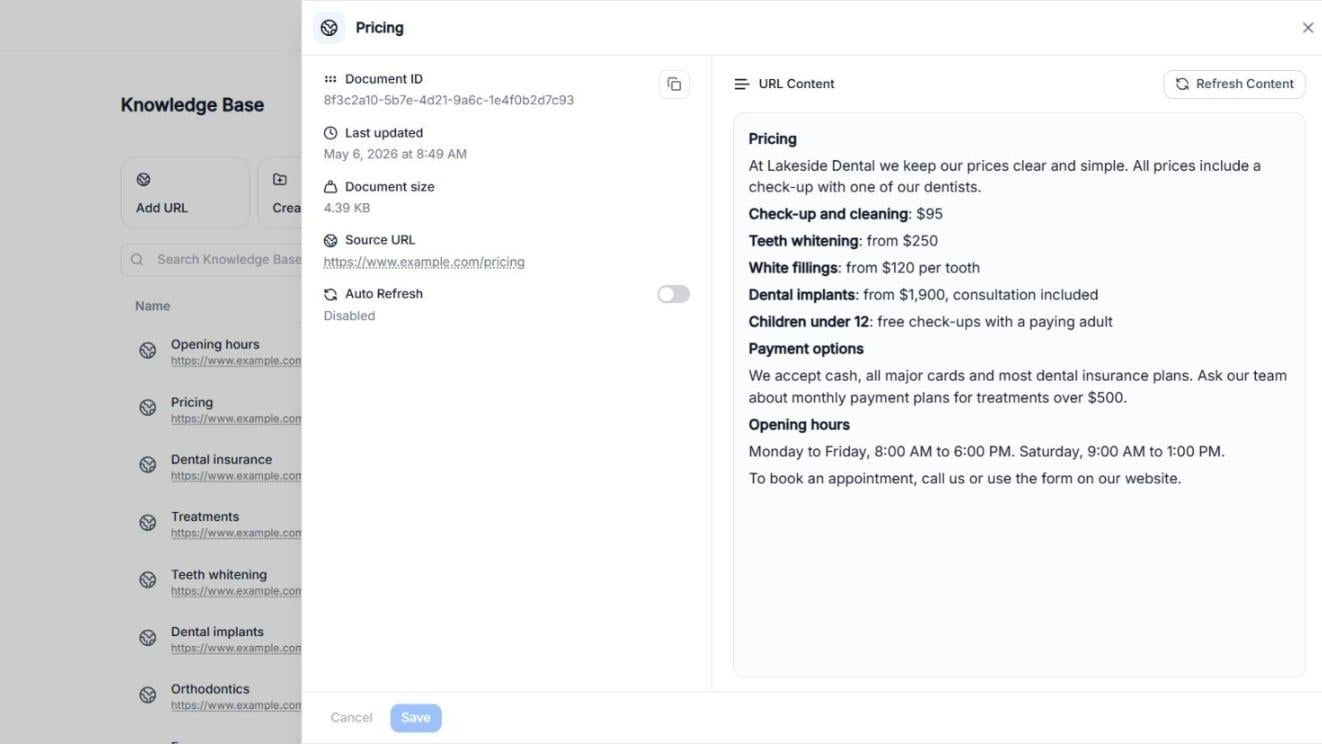
Screenshot: View Details shows the text the agent reads from the page.
Select a Knowledge Base for an agent
After you’ve added your documents (Files or Web URLs), you attach them to an agent in the agent editor.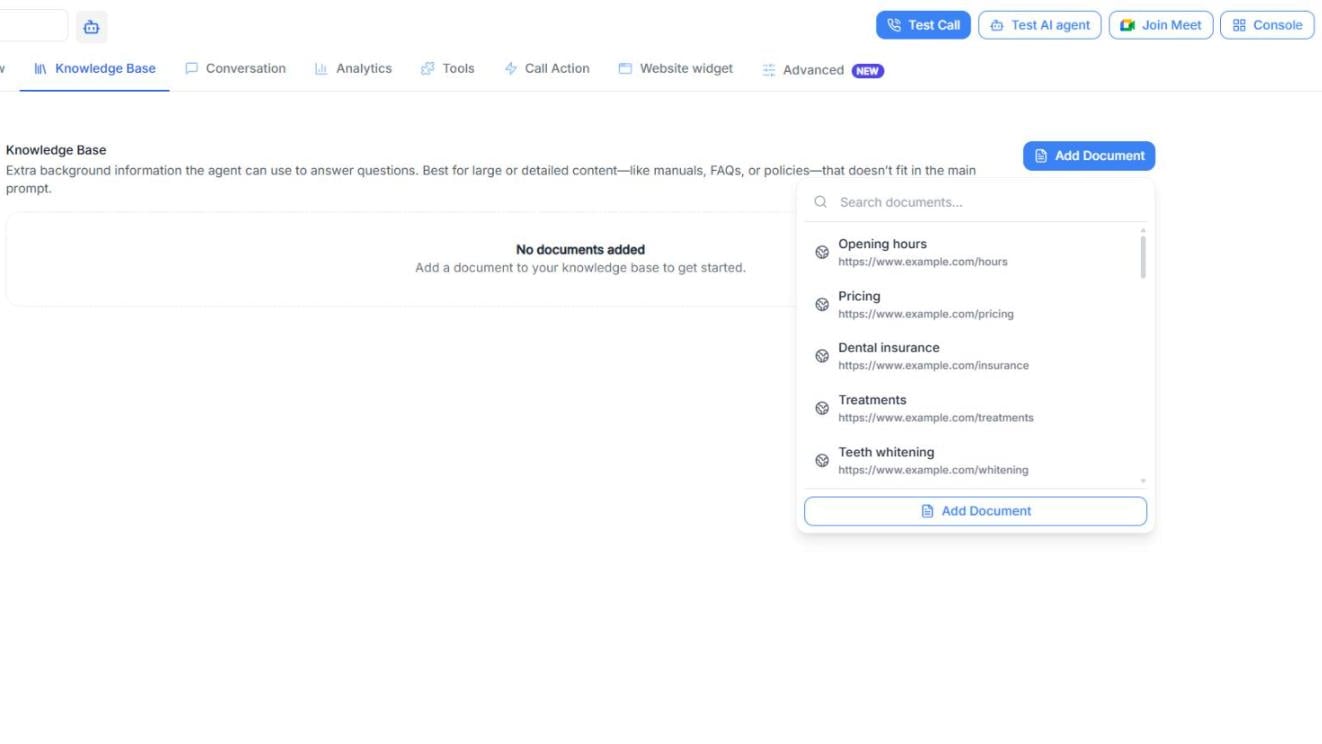
Screenshot: Adding a document from the Knowledge Base while editing an AI agent.
Attach a group to an agent
1
Go to AI Agents and open an agent to edit.
2
Open the Knowledge Base tab.
3
Click Add Document.
4
Use Search documents… to find the document you want, and click it to add it to the agent.
5
Repeat for each document the agent needs.
Practical example
Let’s say you run a dental clinic and you have two agents:- Front Desk Agent (appointments, opening hours, directions)
- Billing Agent (pricing, invoices, insurance questions)
- Files group: “Clinic FAQs (TXT)” for quick answers and scripts
- Web folder: “Pricing & Insurance Pages” with your public website pages, with Auto Refresh turned on
- The Front Desk Agent gets the FAQs documents.
- The Billing Agent gets the Pricing & Insurance pages.