

What is Composer
Callin Composer (Beta) is an AI assistant inside your dashboard. You ask in plain language, and it helps you build, analyze, test, and improve your agents and everything around them. It only uses your account’s real data — agents, numbers, knowledge bases, and calls — never sample data or other users’ records. Before any change is applied, it asks for your approval. Open it from Composer in the left menu or the Composer button at the top of the dashboard (open it here).Video: a new Composer thread with its suggestion cards → What is Composer? → limitations and how it works.
Start a conversation
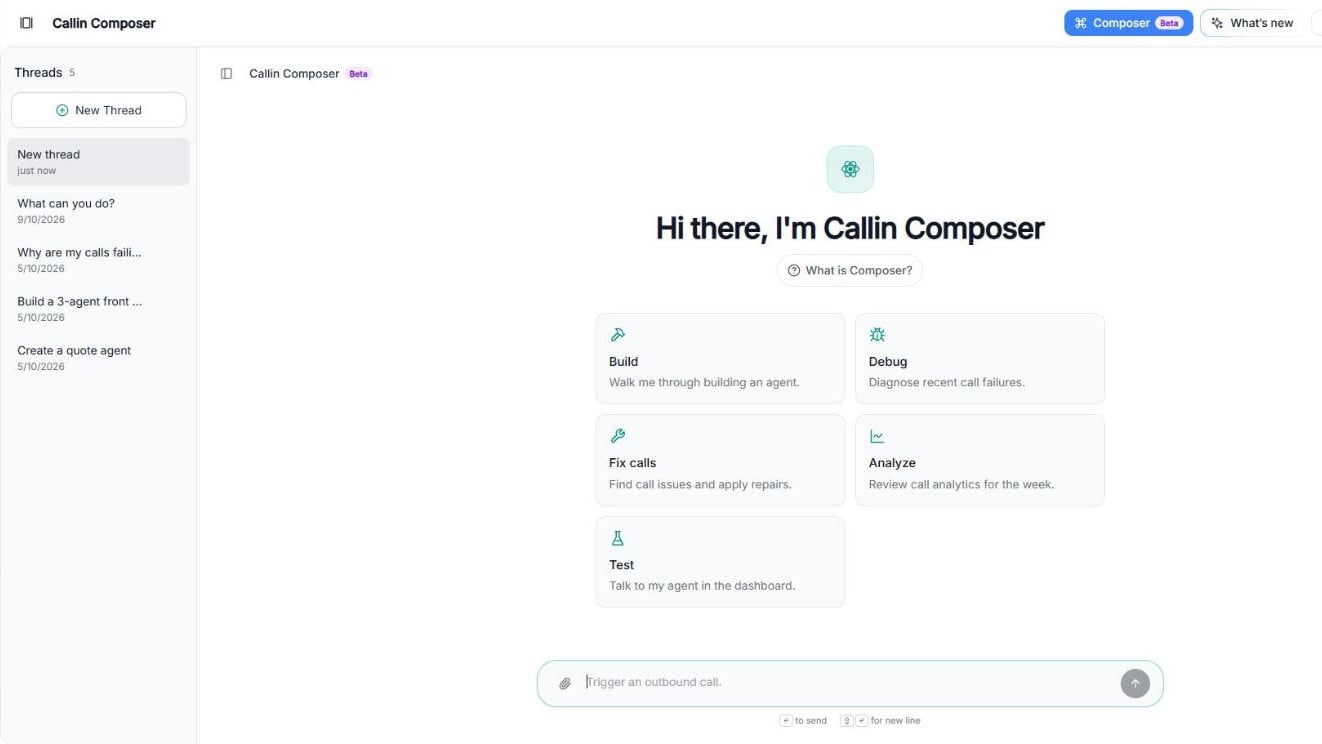
Screenshot: a new Composer thread with the suggestion cards.
- Click New Thread. Each conversation is saved as a thread in the Threads list on the left, so you can come back to it later.
- Pick one of the suggestion cards, or type your own request in the message box:
- Build: walk me through building an agent.
- Debug: diagnose recent call failures.
- Fix calls: find call issues and apply repairs.
- Analyze: review call analytics for the week.
- Test: talk to my agent in the dashboard.
- Press Enter to send, or Shift + Enter for a new line.
Tip: Be specific. “Analyze the latest call of my receptionist agent and tell me why it hung up early” gets a better answer than “check my agent”.
Attach files
Click the paperclip, or drop files on the chat, to attach documents, ID photos, knowledge files, audio, or a campaign CSV. Wait until each file shows ready before you send the message.What Composer can help with
Click What is Composer? to see the full list. Composer can help with:- Agent instructions: update prompts, greetings, voice, LLM, languages, transfers, webhooks, and other agent settings.
- Root cause & fix: diagnose agents and calls, explain the root cause, and update the configuration.
- Diagnose calls & fix: review a call or recent failures and map the issues to configuration or prompt fixes.
- Tools & actions: set up or adjust the tools your agent can use during calls.
- Numbers & calling: phone numbers, test calls, and call-related setup.
- Call review: review recent calls, spot issues, and suggest clear improvements.
- Transfers: transfer settings so callers can reach a person when needed.
- Dashboard setup: create agents and update configuration across the dashboard.
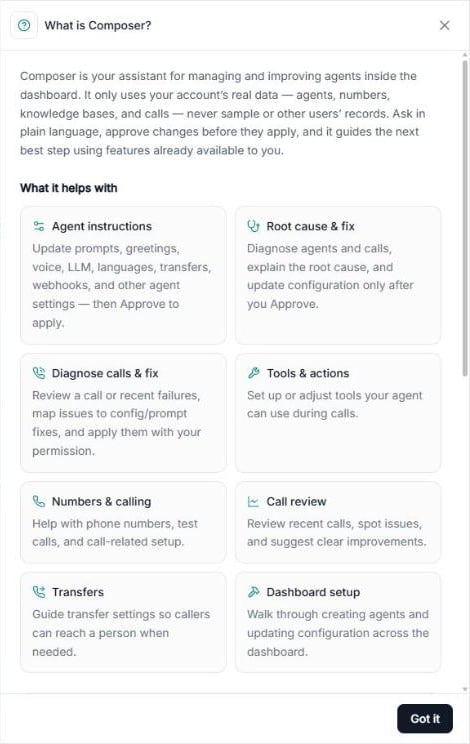
Screenshot: the What is Composer? panel.
Some popular requests: analyze latest call, create an inbound receptionist agent, update my greeting and prompt, review this week’s analytics.Approve changes
Composer never changes your setup on its own. When it wants to apply a change, it shows an Approval required card with the details:- Click Approve to apply the change.
- Click Deny to reject it.
Important: Review every suggestion before you approve it, so your agent stays accurate and on-brand.
How it works
- Tell Composer what you want to improve, create, review, or update.
- Composer suggests the best dashboard changes or next steps, based on the tools and settings available to you.
- Review the suggestion, then keep refining your setup until your agent behaves the way you want.
Export a conversation
In a thread, click Export at the top right to download it as:- PDF report
- Excel workbook
- Markdown chat: the full conversation as a Markdown file.
Limitations
Composer only works with the dashboard setup and the features already available in your account:- It can help with configuration such as prompts, tools, numbers, transfers, and call review.
- It cannot change internal product behavior, hidden settings, or anything not available in the dashboard.
- It cannot add features or capabilities that your plan or dashboard doesn’t include.
- It can only work with the agents, calls, and settings your account already has access to.
Troubleshooting
Issue: Composer didn’t change anything.Cause: The change is waiting for your approval.
Fix: Look for the Approval required card and click Approve. Issue: The answer is too general.
Cause: The request doesn’t say which agent or call.
Fix: Name the agent or call and say what you expected to happen. Issue: I can’t send a message with a file.
Cause: The file is still uploading, or the upload failed.
Fix: Wait until it shows ready. If it failed, remove it and attach it again.