

What is a squad
A squad is a team of AI agents that work on the same call. One agent answers, and when the caller needs something more specific, it hands off the call to the right specialist without hanging up. For example, a front desk agent greets the caller and passes the call to a booking agent when the caller wants an appointment. Squads work with Enhanced agents only (marked Ultra-low latency). You’ll find them in the left menu, under Build (open it here).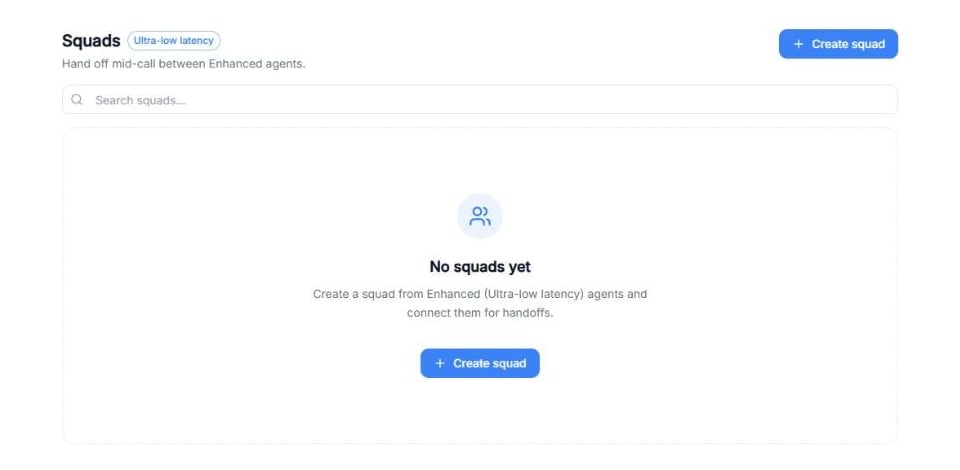
Screenshot: the Squads page, where you create a squad and find the ones you have.
Tip: Use a squad when one agent would need a very long prompt to cover everything. Several short, focused agents are easier to test and improve than one big agent.
Create a squad
Video: Create squad → name the squad → Add agent → set the role and specialization of each agent.
- Go to Squads and click + Create squad.
- In Name your squad, type a name your team will recognize (for example, Clinic front desk squad) and click Continue. You can rename it at any time from the box at the top left.
- The squad editor opens: a canvas on the left and a Get started panel on the right with the three steps: Add agents, Configure an agent, and Create handoffs.
Add agents
- Click + Add agent (top right of the canvas, or in the middle of an empty canvas).
- Search for and pick one of your Enhanced agents. It appears on the canvas.
- Repeat for every agent you want in the squad.
Configure each agent
Click an agent on the canvas to open its settings on the right:- Role: a short name for what the agent does (for example, Greeter, Qualifier, or Scheduler).
- Specialization: the agent’s narrow responsibility and when it should take over.
- Set as entry: makes this agent the one that starts the call.
- Remove agent: takes the agent out of the squad.
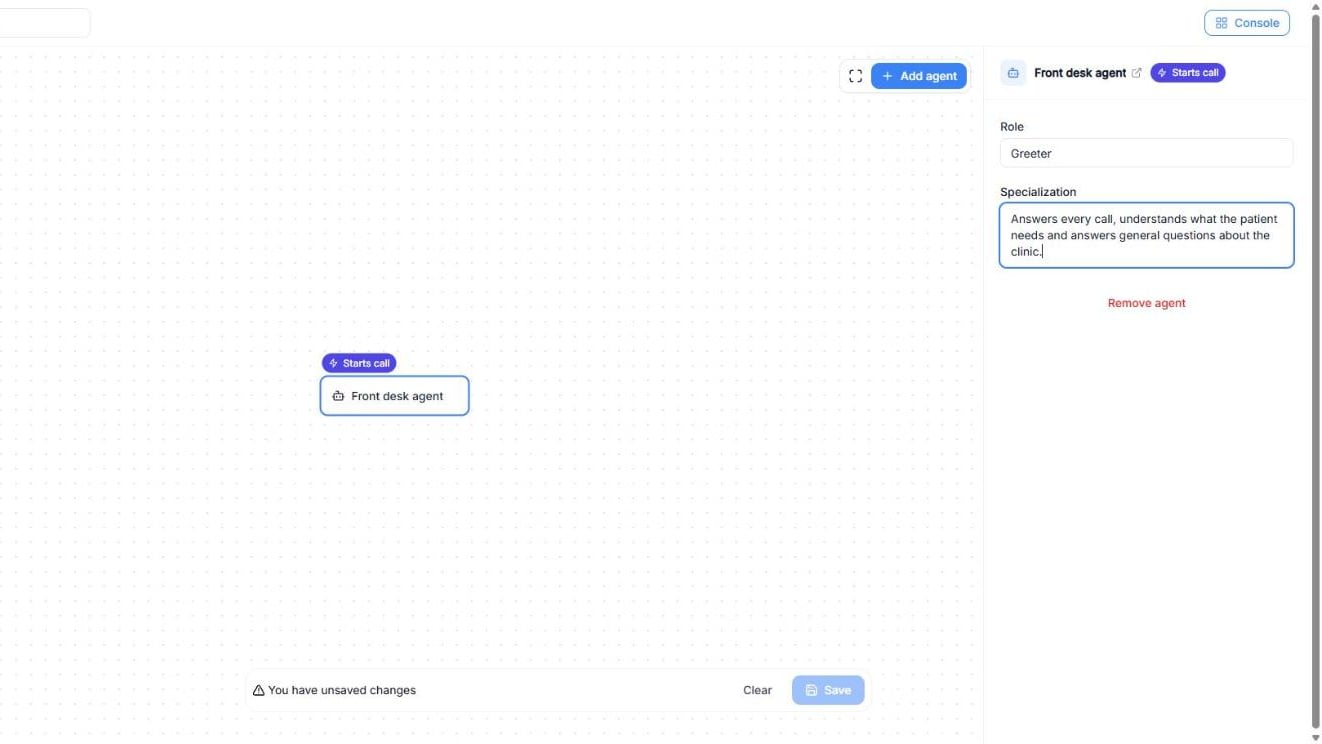
Screenshot: the agent that starts the call, with its role and specialization.
Important: Only Enhanced (Ultra-low latency) agents can join a squad. If you don’t see an agent in the list, check its stack in AI Agents.
Create handoffs
A handoff is the connection that passes the call from one agent to another.Video: connect two agents → fill in the Handoff panel → choose the Context plan.
- Drag from the bottom of one agent to the other agent. A connection appears, and the first agent shows Handoff to with the name of the second.
- Click the connection to open the Handoff panel and fill in:
- When to hand off: the condition for passing the call (for example, “The patient wants to book, move or cancel an appointment.”). By default it says Caller needs this specialist.
- Transition brief: an internal note for the next agent. It’s never spoken to the caller.
- Context plan: how much of the conversation the next agent receives:
- All messages: the whole conversation so far.
- Last N messages: only the most recent messages. Set how many in Max messages.
- Previous agent only: only what the previous agent said.
- None (fresh start): nothing; the next agent starts from scratch.
- User + agent only: only the caller’s and the agent’s messages.
- Pass variables: comma-separated variables to keep across the handoff (for example,
patient_name, reason). - Silent handoff: don’t announce the handoff to the caller. Turn it off to speak a short transfer line first.
- Use Remove handoff to delete the connection.
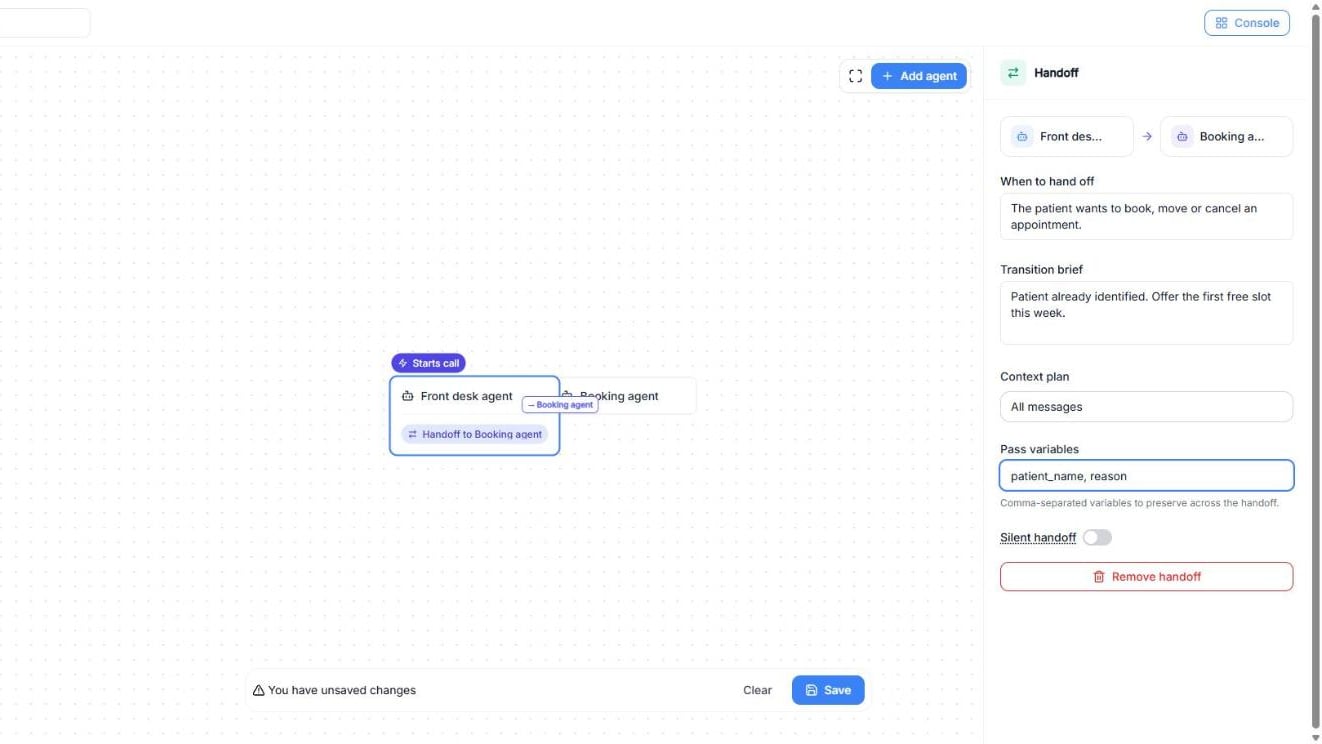
Screenshot: a handoff from the front desk agent to the booking agent.
Tip: Pass the variables the next agent needs (name, reason, account number…) so the caller doesn’t have to repeat them.
Save and test the squad
While you edit, a bar at the bottom shows You have unsaved changes. Click Save to keep the squad, or Clear to discard the changes. To save, the squad needs:- A name (otherwise you’ll see Name this squad).
- At least 2 Ultra-low latency agents on the canvas (otherwise, Need more agents).
- At least one handoff between two different agents, with a description of when the starting agent should hand off (otherwise, Add a handoff).
Use and manage your squads
Each squad in the list shows how many agents and handoffs it has, and which agent is the entry. From there you can:- Assign number: give the squad a phone number so it can receive and make calls. Use Change number or Unassign number to change it. Without a number, the squad shows No number assigned and can’t receive or make phone calls.
- Test Squad: call the squad in your browser. Handoffs work the same as on the phone.
- Test Call: call a phone number with the squad. Enter the Customer number in international format (for example,
+14155550123) and click Start call. The entry agent speaks first, and handoffs follow your canvas. - Open canvas: open the squad editor to change agents or handoffs.
- Delete squad: removes the squad. Its member agents are not deleted.
Tips & best practices
- Give each agent one clear job. Short, specific specializations make handoffs more reliable.
- Write handoff conditions like rules. “The caller asks about prices or wants to buy” works better than “sales”.
- Choose the context carefully. All messages keeps the full story; None (fresh start) is useful when the next agent shouldn’t see earlier details.
- Keep the transition brief short. One or two sentences with what the next agent must know.
Troubleshooting
Issue: I can’t find an agent when I click Add agent.Cause: It isn’t an Enhanced (Ultra-low latency) agent.
Fix: Use an Enhanced agent. Squads only work with that stack. Issue: I can’t save the squad.
Cause: It has no name, fewer than 2 agents, or no handoff with a condition.
Fix: Check the message that appears and complete what’s missing. Issue: The call never moves to the next agent.
Cause: The handoff condition doesn’t match what callers say, or the squad wasn’t saved.
Fix: Make When to hand off clearer and click Save. Issue: The squad doesn’t receive phone calls.
Cause: It has no number assigned.
Fix: Use Assign number on the squad. Issue: The next agent asks again for information the caller already gave.
Cause: The context plan or variables don’t pass that information.
Fix: Use All messages or add the fields to Pass variables.