

What are tickets
A ticket is an issue or complaint that one of your agents logs during a call. When a caller reports a problem, the agent creates a ticket with the contact’s details and a description, so your team can step in and solve it. Tickets are created by agents that have Issue & Complaint Tracking turned on in the Call Action tab. See AI Agents. You’ll find them in the left menu, under Telephony (open it here).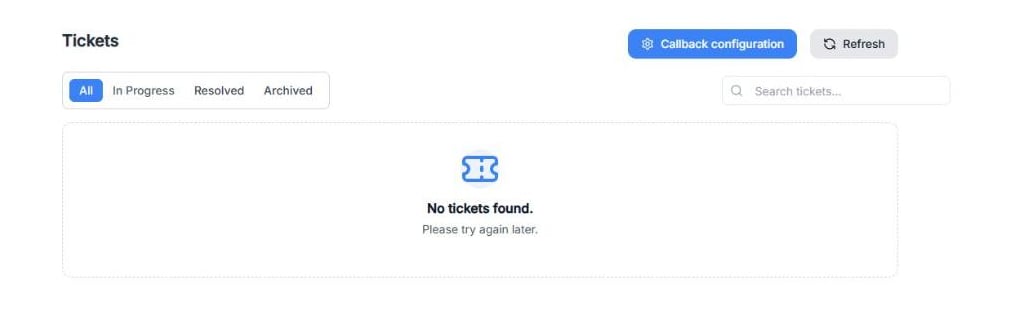
Screenshot: the Tickets page. When your agents log issues, they appear here.
Find your tickets
- Use the filters All, In Progress, Resolved, and Archived to see tickets by status.
- Use Search tickets… to find a ticket.
- Click Refresh to load the latest tickets.
Tip: You can also find the calls linked to a ticket in Call History, with the Ticket ID filter.
Work on a ticket
From each ticket you can:- View ticket: open the Ticket Detail.
- Set In progress: mark that your team is working on it.
- Set Resolved: mark it as solved.
- Archive: move it out of the active list.
- Copy ticket ID: copy the ID to share it or to search for the call.
Ticket Detail
The detail of a ticket shows:- The contact’s details, the subject, and the Issue description.
- Status history: every status change, with its comment.
- Callback activity: the callbacks made for this ticket and their status (Generated, Executed, Failed, or Completed).
- Make manual callback: call the customer back now.
Callback configuration
A callback is a call the agent makes to the customer to tell them how their issue was solved. Click Callback configuration to set it up:- Callback execution:
- Automatic: the callback is made automatically when the ticket status changes to Resolved.
- Manual: you start the callback yourself with Make manual callback.
- Resolution script: the message read to the contact during the callback. Personalize it with the Available variables:
{{ticket_date}},{{ticket_subject}},{{operator_comment}}, and{{contact_name}}.
Example: “Hello{{contact_name}}, we’re calling about the issue you reported on{{ticket_date}}:{{ticket_subject}}.{{operator_comment}}Is there anything else we can help you with?”
Important: Write a clear Operator comment when you resolve a ticket. With {{operator_comment}} in the script, that comment is what the customer hears.
Troubleshooting
Issue: No tickets appear.Cause: No agent has Issue & Complaint Tracking turned on, or no caller has reported an issue yet.
Fix: Turn on Issue & Complaint Tracking in the agent’s Call Action tab and click Refresh. Issue: The customer wasn’t called back after I resolved the ticket.
Cause: Callback execution is set to Manual, or the callback failed.
Fix: Check Callback activity in the ticket, and use Make manual callback or switch to Automatic. Issue: The callback message sounds incomplete.
Cause: The ticket has no subject or operator comment.
Fix: Fill in the subject and add a comment when you change the status.